
Important: If you haven't attended the note-taking training, please write to us at support@usepanorama.com so we can support you.
Understanding note-taking in Panorama
Note-taking in Panorama happens in two distinct steps:
- Note-taking module (during the meeting): Quick notes in real-time to capture the essentials. Don't worry about perfection - you can review everything later!
- Minutes review module (after the meeting): This is where you can refine, correct, adjust timestamps, and finalize the document before submitting it for adoption.
Ensuring you have note-taking permissions
Once the meeting agenda has been sent, you should see a "Write the minutes" button (you may or may not see all the other buttons in the following screenshot - this depends on your permissions).

If you don't see the "Write the minutes" button, you may be missing minutes writing permissions. Make sure the agenda has been sent (if it hasn't, you'll see an "Agenda under construction" status).
You can also verify if you have note-taking access under the "Organization" tab. Then click on "Members", then find your profile.
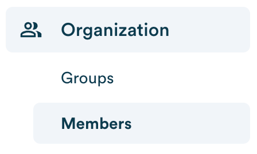
Click on "See details".

There, you will see all the committees you are part of as well as your role, the dates of your term and the permissions assigned to you for each committee. If you see the "Minutes" chip in the "Write" column, you have note-taking access.
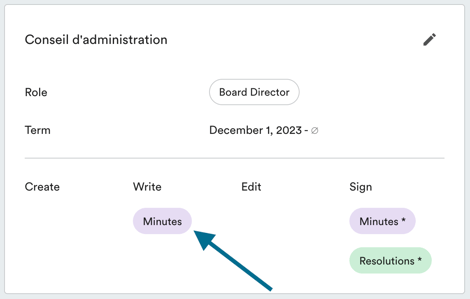
To make changes to your access, you must be an account owner. If you are not, write to your account owner or to support@usepanorama.com to request an update to your access.
Quick note-taking during the meeting
Note-taking in Panorama is built to happen in real-time, during the meeting. Only one person can be in the note-taking module at a time.
If you want to "Write the minutes" retroactively (after the fact), it's possible and won't impact the workflow. Automated timestamps can be modified during minutes review.
Remember: The goal of the note-taking module ("Write the minutes") is to quickly capture essential information. You'll have plenty of time to review, correct, and refine the minutes in the review module after the meeting.
You can always exit note-taking by clicking "Exit" at the bottom left of the page, and someone else with permissions can take over.
There's always a notes box on each agenda topic so you can add your quick notes. All notes can be reviewed and improved in the review module after the meeting.
Starting note-taking
To start taking notes for a given meeting, navigate to your Upcoming meetings, then click on "Write the minutes".

Note-taking is done by going through the agenda point by point.
The timer
The timer is there to help you respect the allocated time. Currently, only the person taking notes has a timer.
The timer doesn't make a sound, doesn't prevent you from editing, and doesn't automatically move to the next topic during the meeting - don't worry if you go over time!
Opening the meeting and quorum
In this topic, you can mark attendance and record your quorum. Attendance can be modified during minutes review in case of an oversight or late arrival.
Panorama directly adds the meeting start time to the minutes as well as a sentence about reaching quorum once you click "Record quorum". You can update the timestamp in the review module after the meeting.
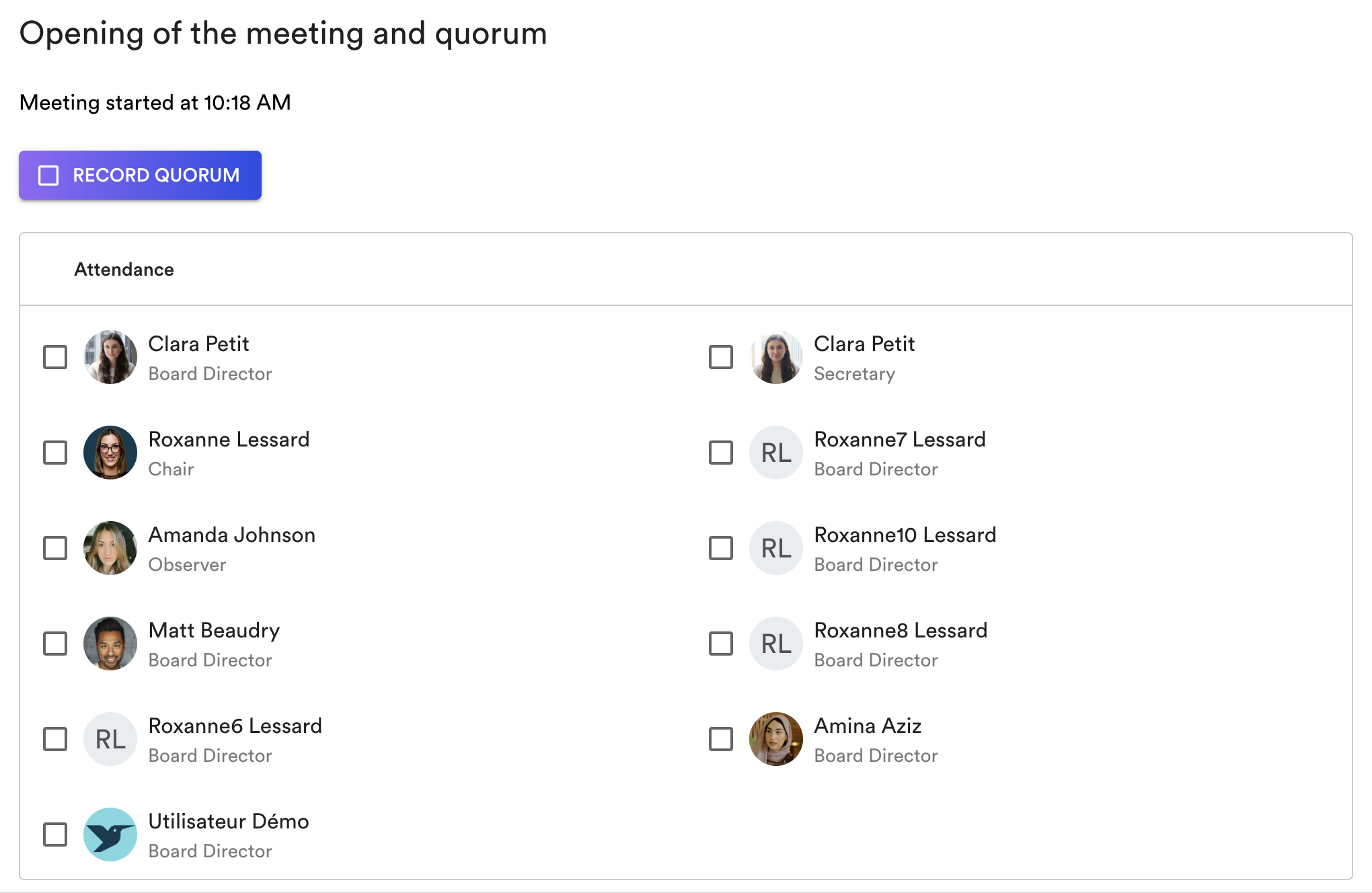
Are members external to the board exceptionally joining your meeting? You can add this information in the notes below the attendance table.
(Optional) Nominations
This step is optional: it's one of our smart topics that allows you to appoint a chair and secretary for the meeting itself. This can be useful if the chair and/or secretary cannot attend a meeting.
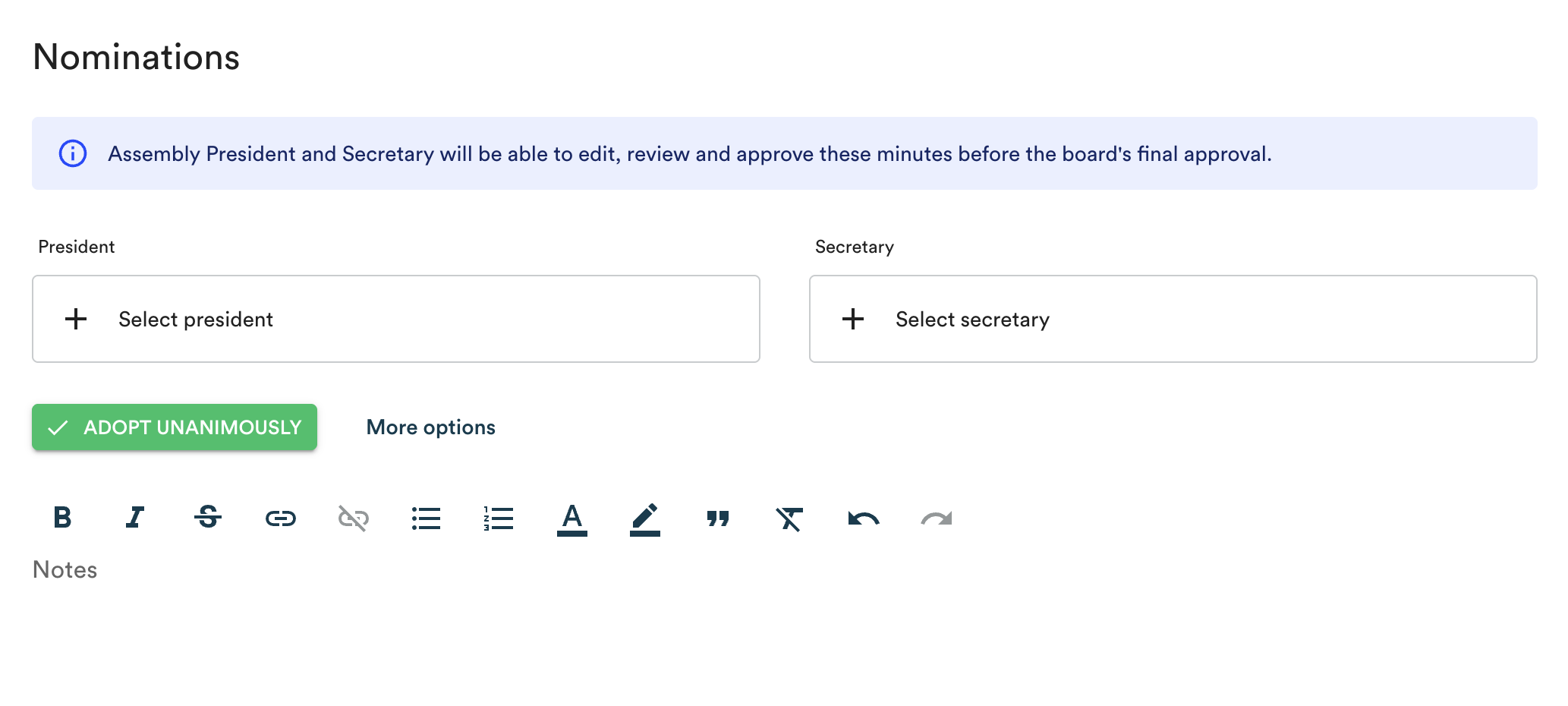
The appointment of meeting officers is a motion that Panorama allows you to record by clicking "Adopt unanimously" or "More options" to select a mover and seconder (see below).
Adoption of the agenda
In the agenda adoption topic, you can click on the agenda section to make changes as needed.
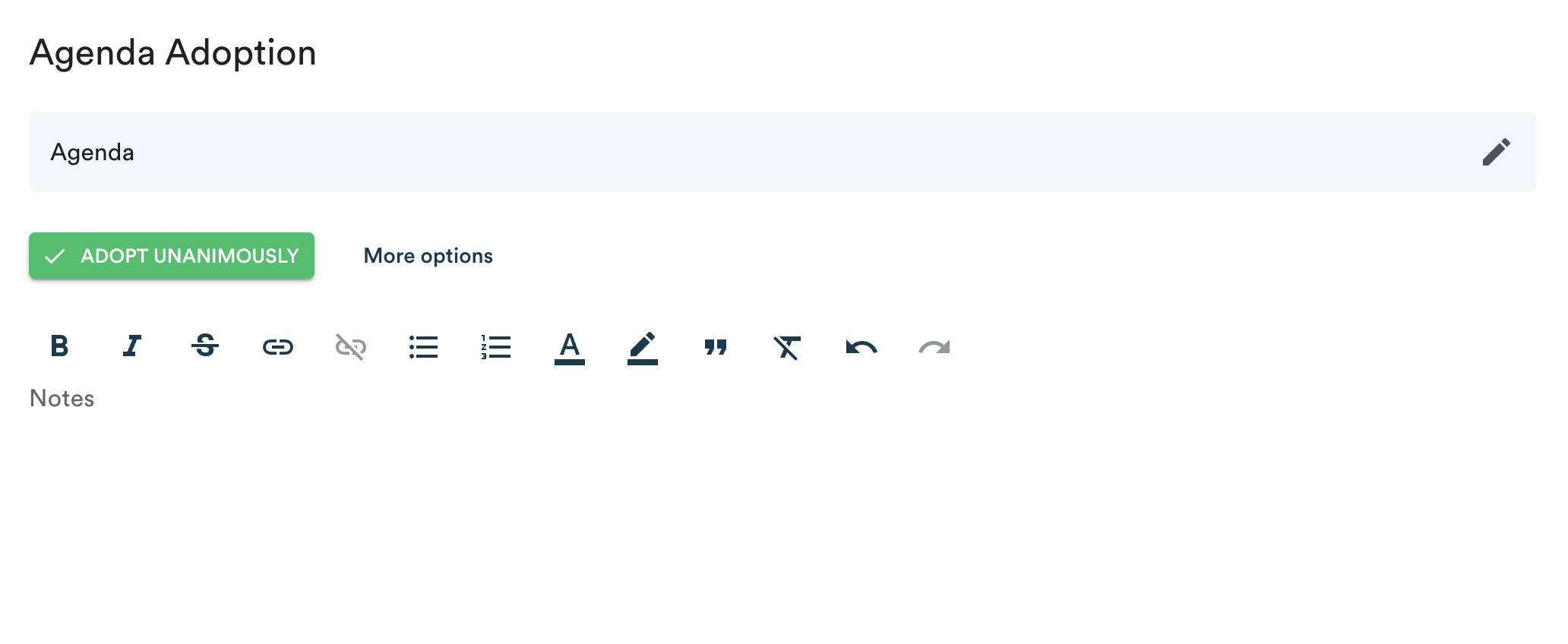
To change the order of topics, click on the arrows to the left of the topic. To edit the content of a topic (for example, add a topic to the Miscellaneous), click on the pencil at the top right of the topic.
Important! It's very important to always click the "Save" button at the top right of the topic after making changes.
Then, you just need to record the motion (see below).
Adoption of the last minutes
If you have permissions, you can edit the minutes on this page - if there are last-minute changes to make.
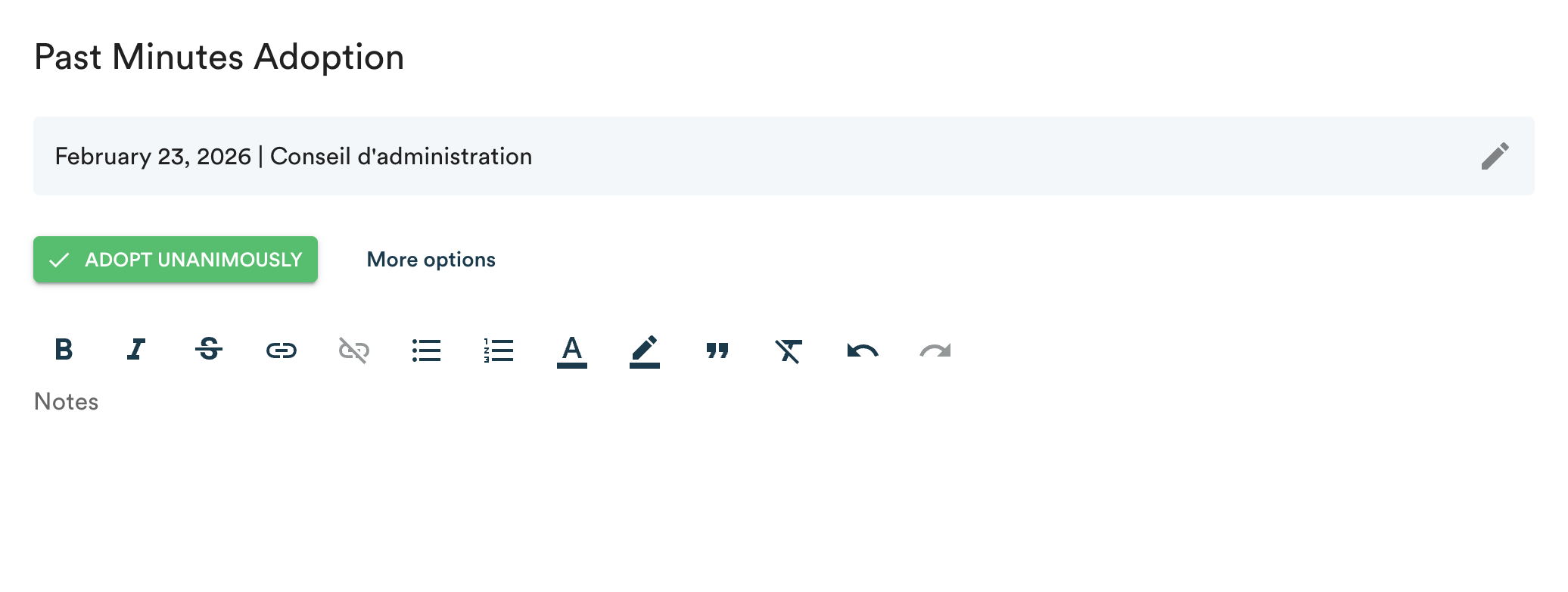
Important! Once the minutes are adopted, they will no longer be editable.
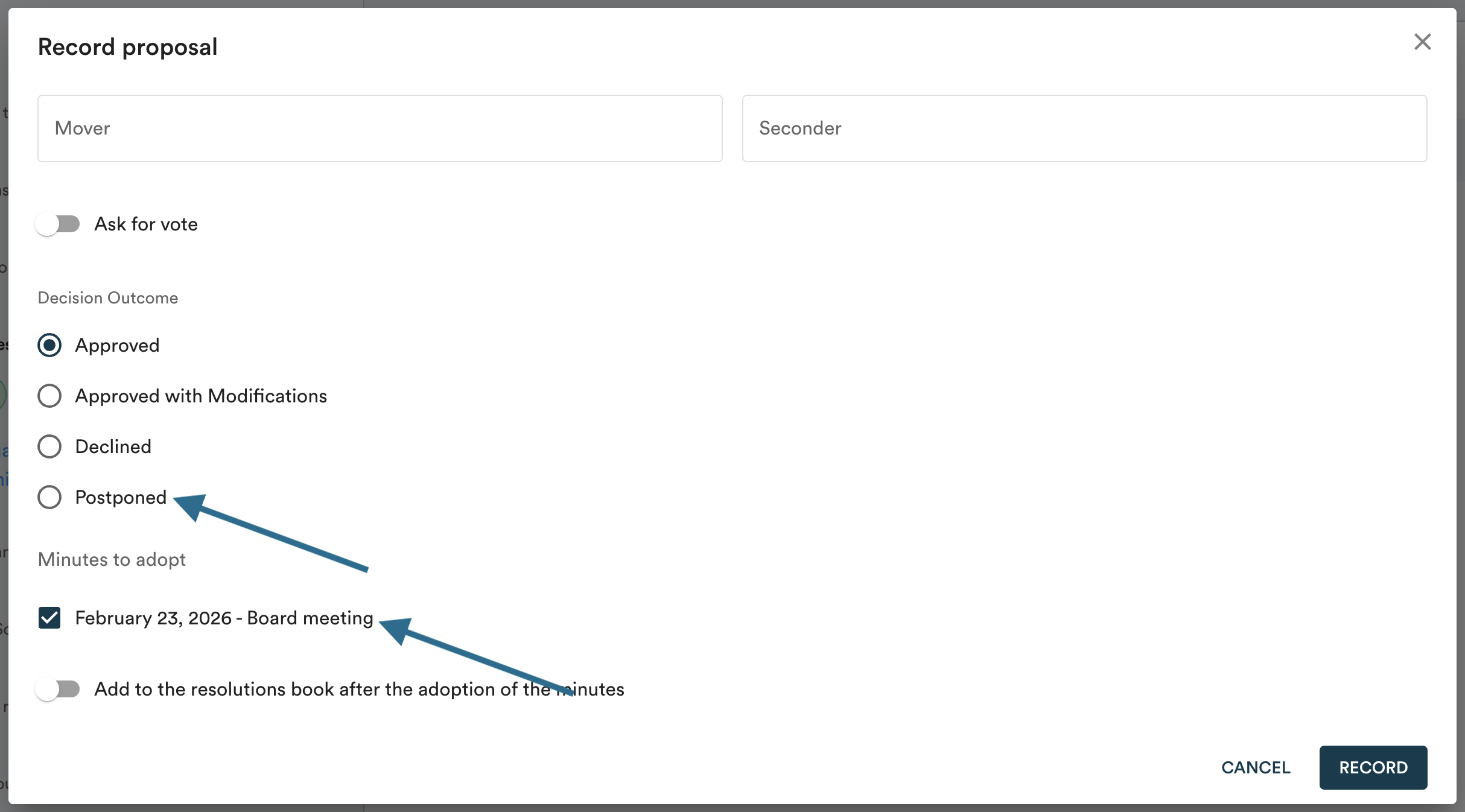
In this case, when you record the motion (see below), you can choose which minutes to adopt in the motion recording modal.
-
To postpone the adoption of minutes, select the "Postponed" option.
-
If you want to seal one set of minutes out of two, for example, select the "Adopted" result, but make sure to uncheck the minutes you don't want to seal. They will remain editable, and you can seal them manually later.
Your agenda topics
It will be the same principle for each topic. Take quick notes in the notes box and consult the agenda documentation in the left panel. You can enhance your notes during review.
In camera
You can only take notes in camera if you've been given permission to do so by the agenda creators. In camera note-taking guide →
Adjournment of the meeting
The adjournment topic is another smart topic that will allow you to close the meeting. Panorama will ask you to record the motion (see below) and will automatically add the adjournment time to the minutes. As with the meeting opening, the timestamp can be modified during minutes review.
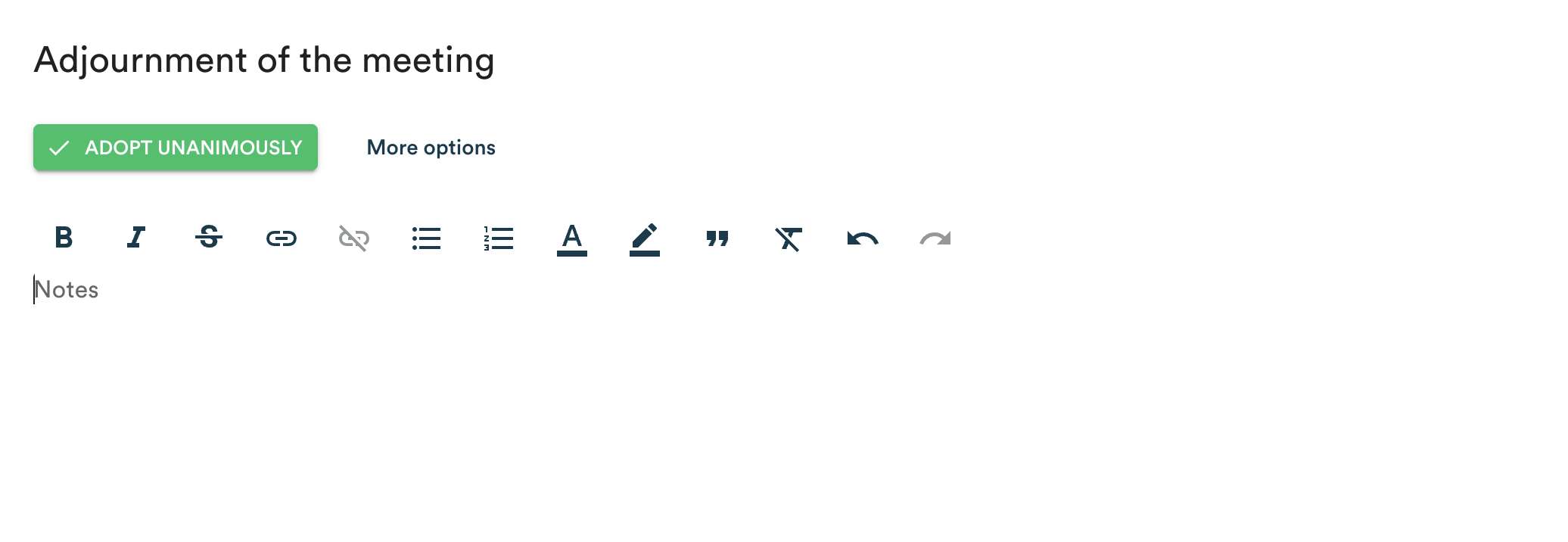
Click "Review minutes" at the bottom right of the page to close the note-taking module and send the minutes to the review module.
Recording a motion
For each draft resolution or motion (smart decision topic) in Panorama, you'll be prompted to either "Adopt unanimously" or click "More options".
If you click "Adopt unanimously", you won't need to note a mover and seconder (although you can always add them later in the review module).
If you click "More options", you can note the mover and seconder, then note if there's a vote request or adjust the decision result. For certain topics, you can also decide whether to add a decision to your resolutions book by checking the "Add to resolutions book after the adoption of the minutes" option.
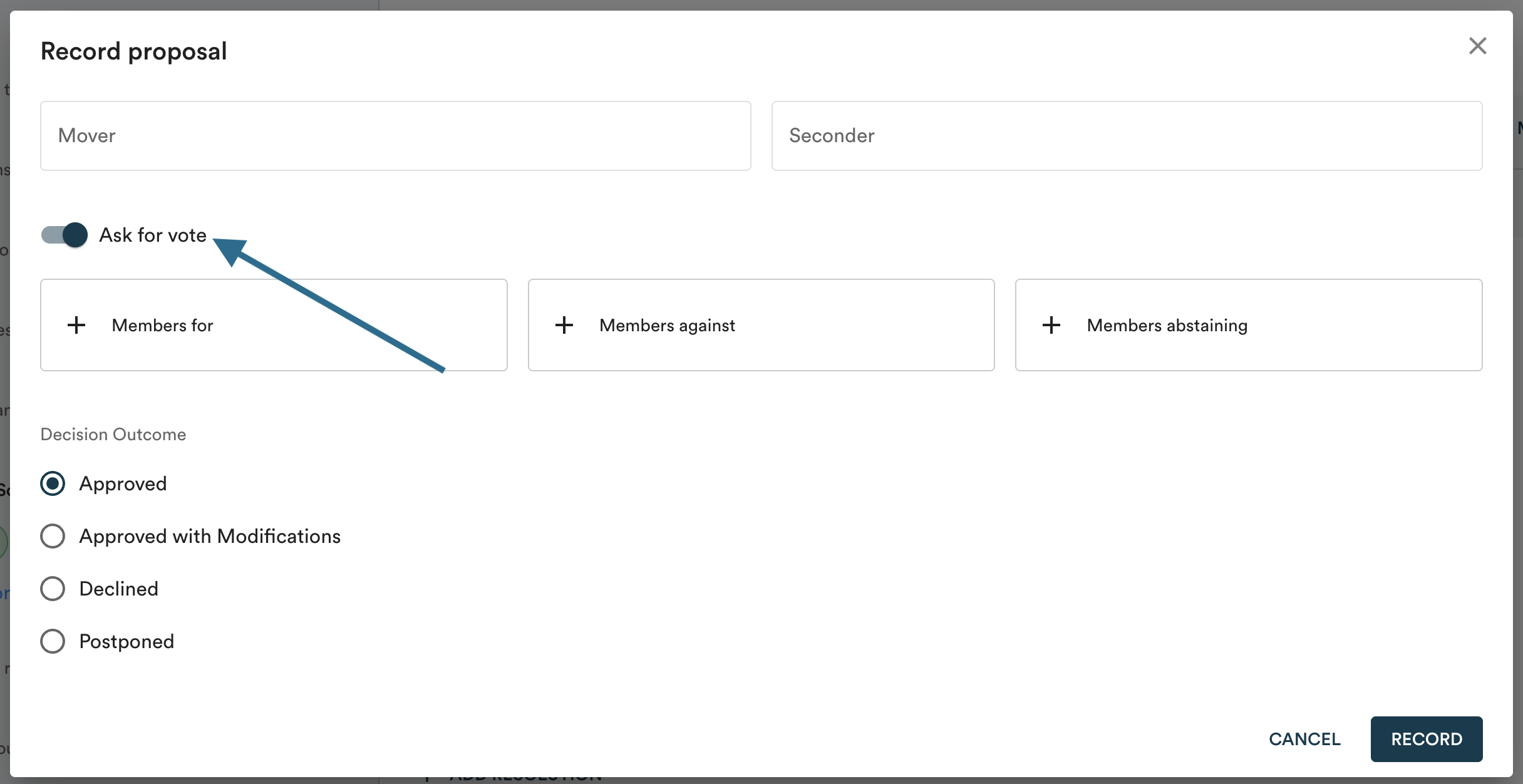
With this information, Panorama automatically generates the motion adoption sentence: "On motion duly made (by Mover) and seconded (by Seconder), adopted (unanimously, with amendments, postponed, or rejected)".
Once you click "Review minutes", the minutes you drafted are now available for review by all members who have permission. Learn more about reviewing minutes →