
Write to us at support@usepanorama.com to receive complete training.
If you are not writing the minutes but you've been asked to take notes in camera, this quick guide is for you!
1. Make sure you have note-taking access
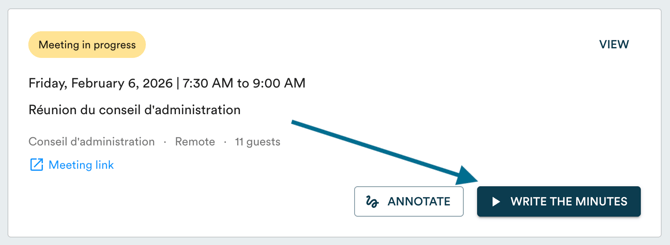
You should see the "Write the minutes" button on a sent meeting. One person at a time has access to note-taking. Make sure to only click on "Write the minutes" at the time of the in camera session.
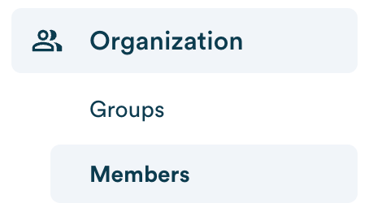
You can also verify if you have note-taking access under the "Organization" tab. Then click on "Members", then find your profile.
Click on "See details".

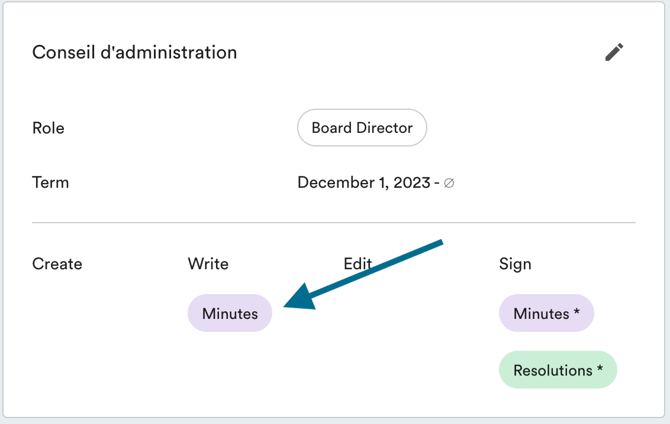
There, you will see all the committees you are part of as well as your role, the dates of your term and the permissions assigned to you for each committee. If you see the "Minutes" chip in the "Write" column, you have note-taking access.
To make changes to your access, you must be an account owner. If you are not, write to your account owner or to support@usepanorama.com to request an update to your access.
2. Take notes
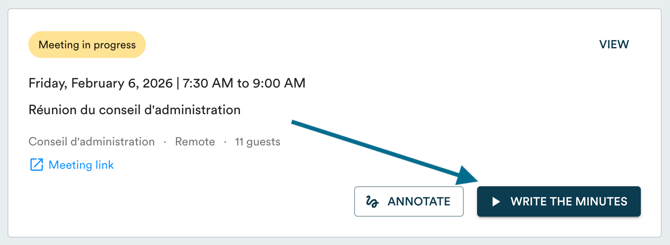
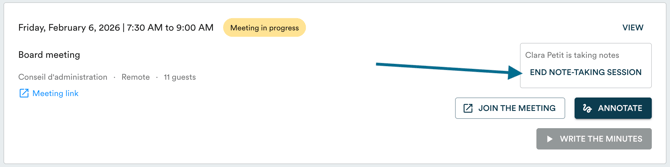
When the in camera session begins, you can click on "Write the minutes":
If the person responsible for taking notes forgot to exit the module before leaving the meeting, you can also click on "End note-taking session" in order to resume note-taking in their place.
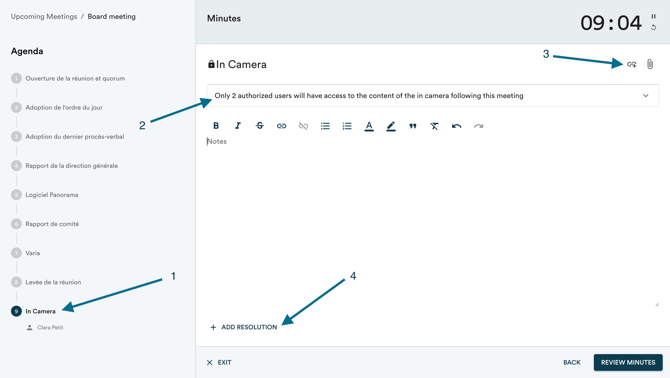
Once you arrive in the note-taking module:
- If needed, navigate to the "In camera" agenda item using the left sidebar.
- You can always verify who has access by clicking on the bar "Only x authorized users will have access to the in camera content following this meeting". This list can no longer be modified.
- Use the buttons in the top right to add relevant links or documents to the notes.
- If you are adopting a resolution in camera, you can add it directly during note-taking. Attention, any adopted resolution will be visible in the minutes (title, text, vote result, and mover and seconder if applicable).
All notes added to the in camera session are completely private: they cannot be modified after the meeting and will only be visible to authorized users. No in camera session notes will appear in the minutes, with the exception of adopted resolutions.
3. End note-taking
There are 2 common scenarios:
-
The in camera session is the last item on the agenda. If this is the case, simply click on "Review minutes" and the minutes will be generated based on the notes taken in the meeting before the in camera session. You may not have access to the draft minutes. The in camera session notes will be automatically filed under the "In camera" tab.
-
The in camera session precedes the adjournment of the meeting item. If this is the case, simply click on "Next" at the bottom right of the page, then record the motion for adjournment. You can optionally mark a mover and seconder by clicking on "More options".
Then, click on "Review the minutes" to finish taking notes. The minutes will be generated based on the notes taken in the meeting before the in camera session. You may not have access to the draft minutes. The in camera session notes will be automatically filed under the "In camera session" tab.
If your in camera session is at the beginning of the meeting, simply make sure to coordinate with the secretariat team (who starts the meeting, who takes attendance, etc.). You can write to us at support@usepanorama.com if you need help to better understand how and to what extent to collaborate with the secretariat.