
Unfortunately, full screen mode is not available on tablet
Viewing a document in full screen
- Click on the document you want to view, either from the agenda (in "Upcoming Meetings", click "View"), or from the annotation view (in "Upcoming Meetings", click "Annotate").
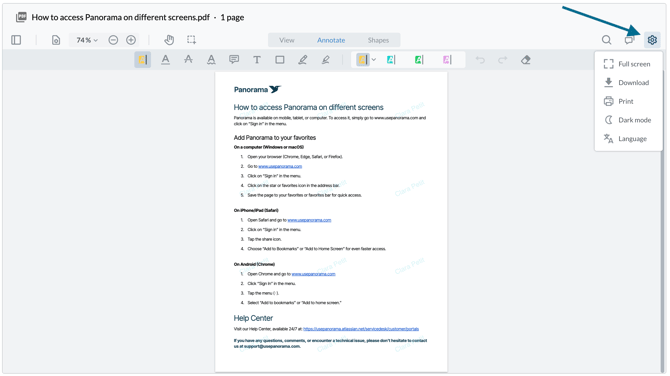
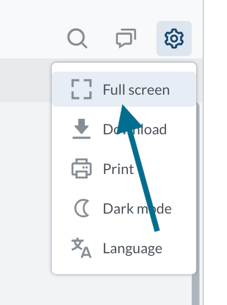
- Once the document is open, click the gear icon (⚙️) in the top right corner of the viewer, then click "Full screen".
- Use the "+" and "-" buttons in the toolbar to adjust the zoom.

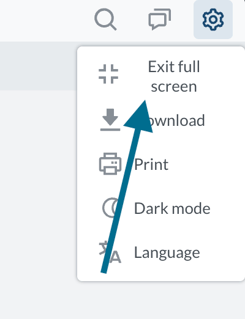
- To exit full screen, click "Exit full screen" or press the "Esc" key.
Annotating a document
Click on the document you want to annotate, either from the agenda (in "Upcoming Meetings", click "View"), or from the annotation view (in "Upcoming Meetings", click "Annotate").
Make sure you are in the correct mode by selecting "Annotate" at the top of the page.

Comment on document topics
Annotations are private and apply to PDF documents. If you want to share your observations with other members or collaborate on an agenda, minutes, or a resolution, use comments instead.