
When a review of a reference document is suggested, you have two options:
1. New version of the document
When a new version has been approved or formally adopted by your board:
-
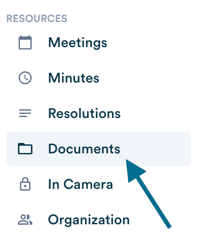
Open the document in the "Documents" tab and click "Update".

-
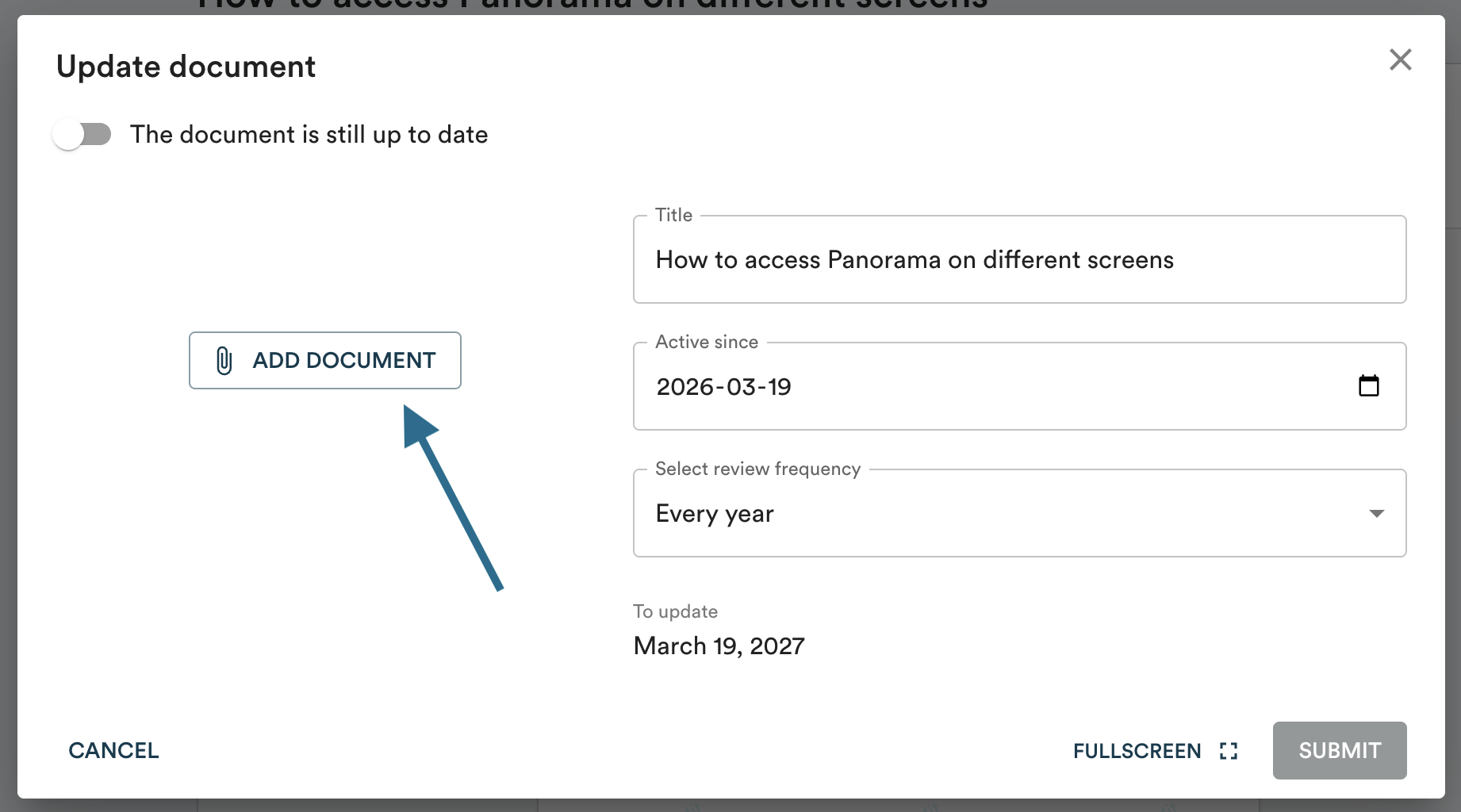
Click "Add a document" and select the new file. For the best experience for your members, we recommend PDF format.
-
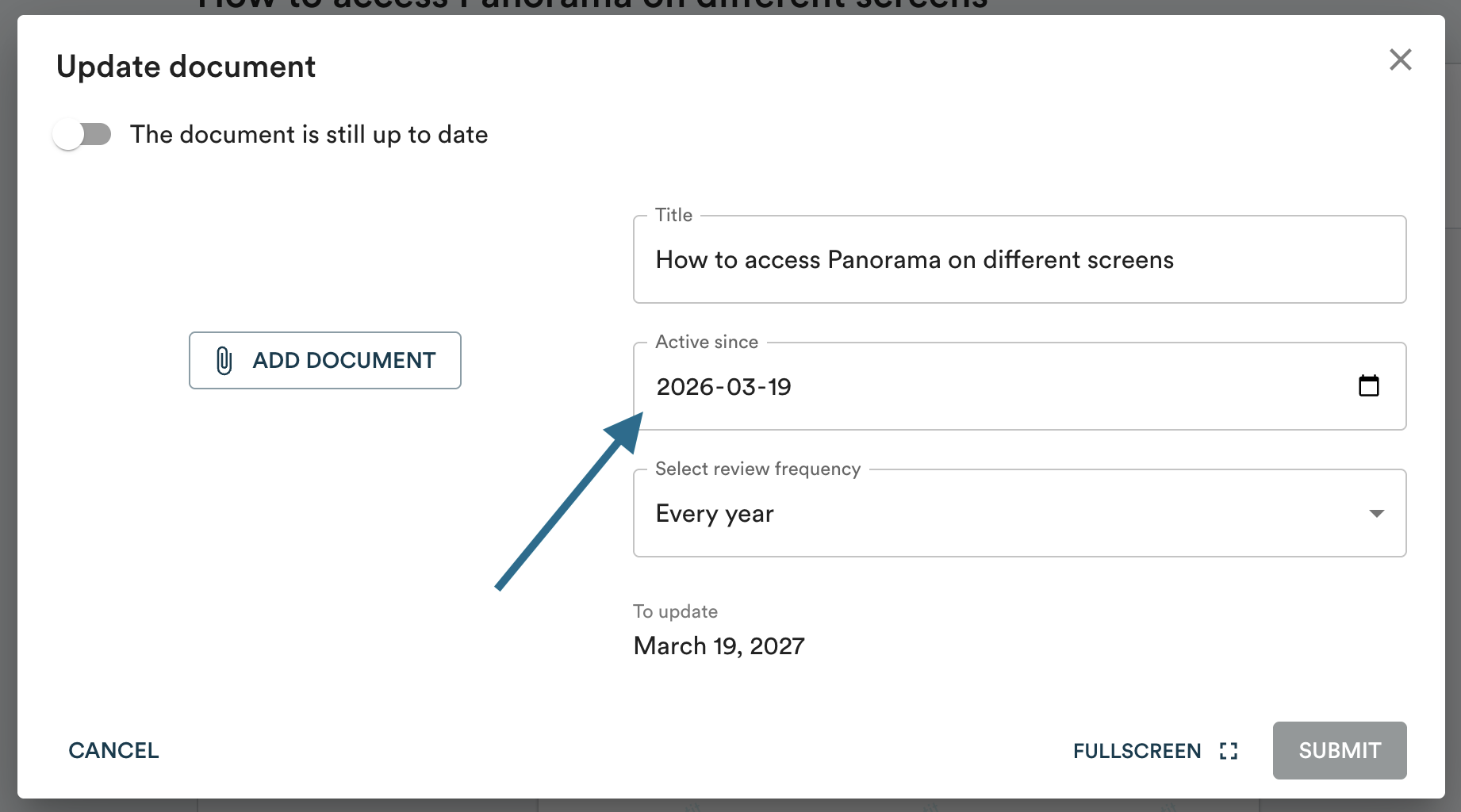
Enter the date from which this version has been in effect in the "Active since" field.
-
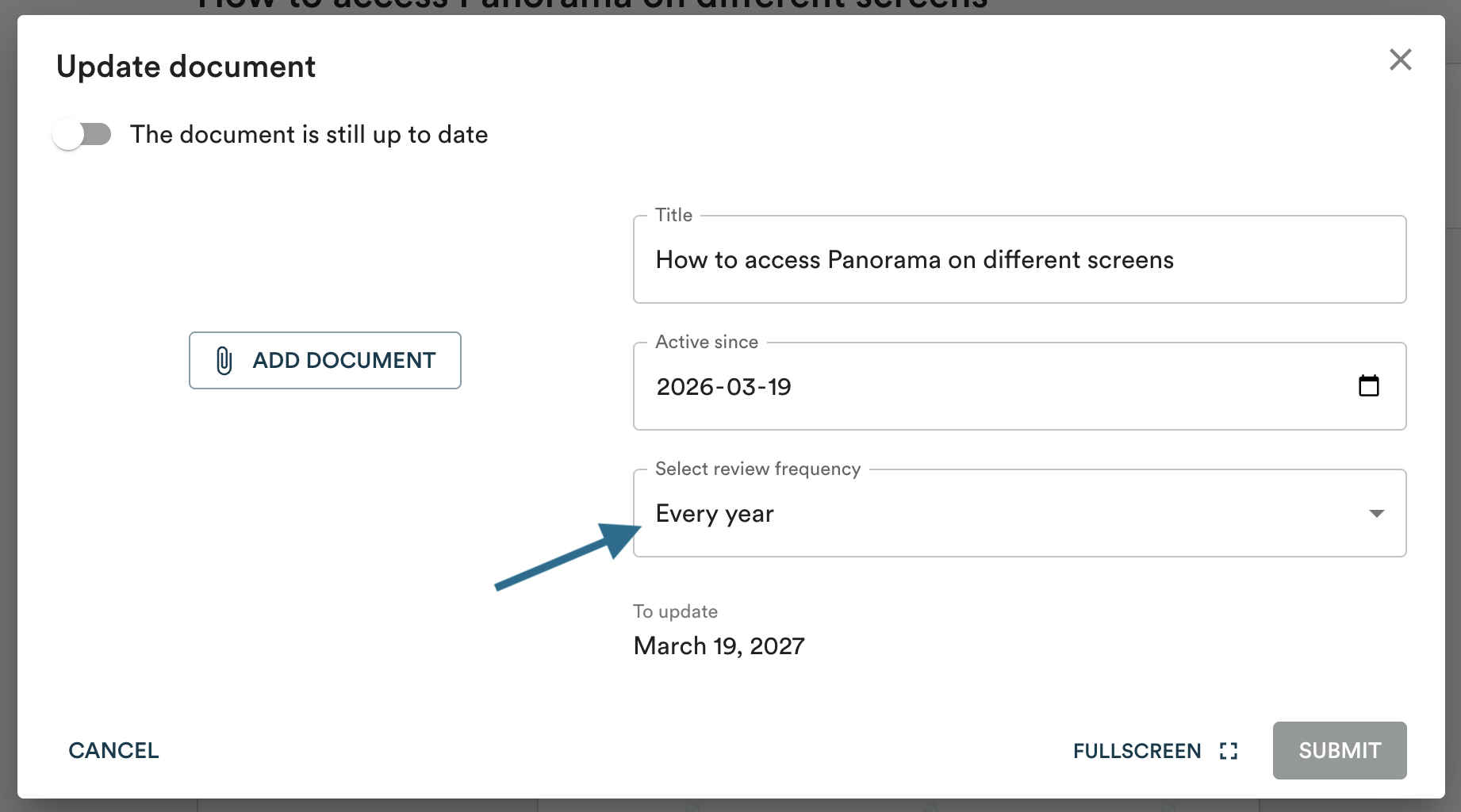
Optionally, adjust the review frequency. Select "Custom" to set a specific date rather than a recurring frequency.
-
Click "Submit".
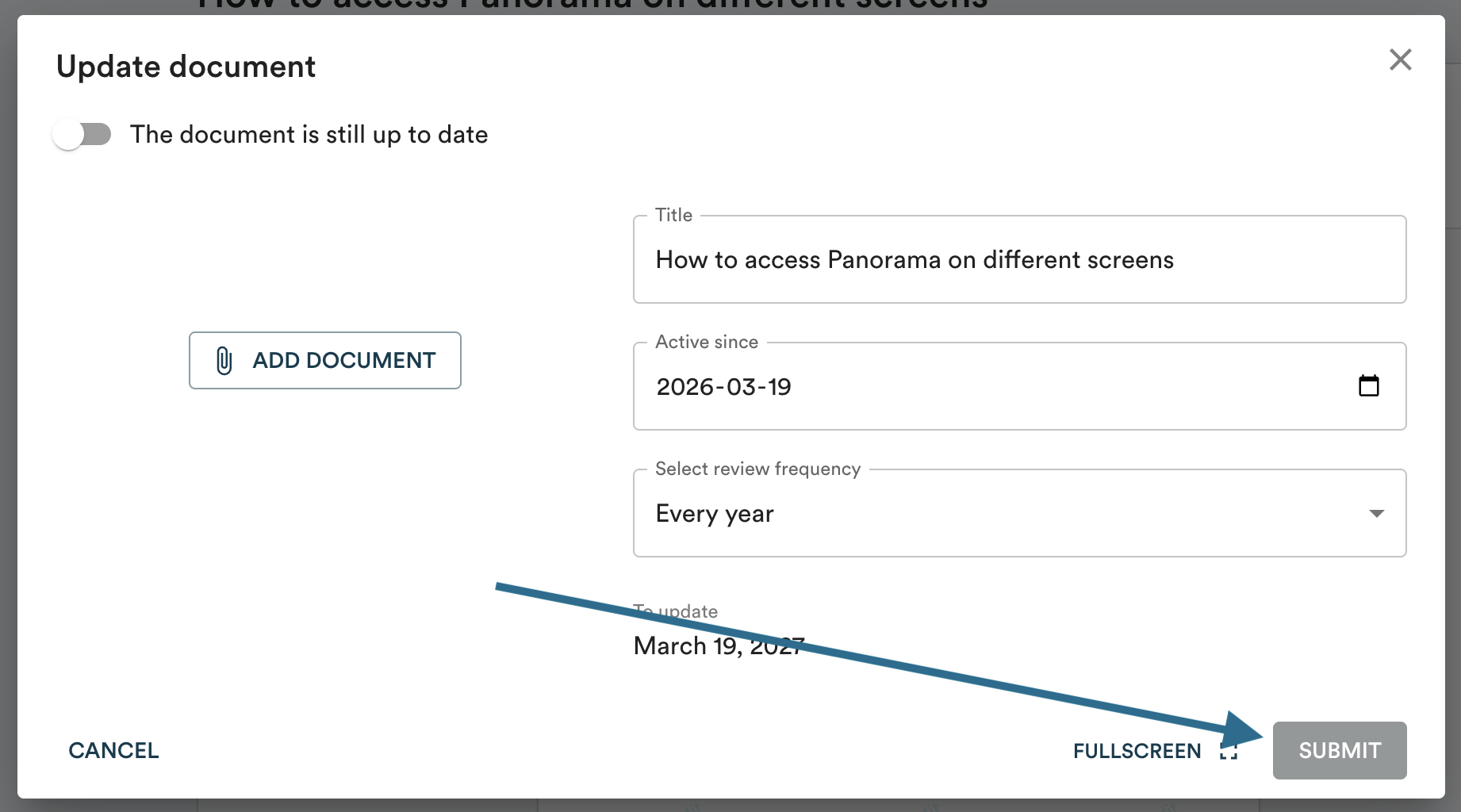
The previous version is automatically saved in the "History" section of the document, at the bottom of the page.

2. The document is still current
If the document hasn't changed but you want to push back the review date:
-
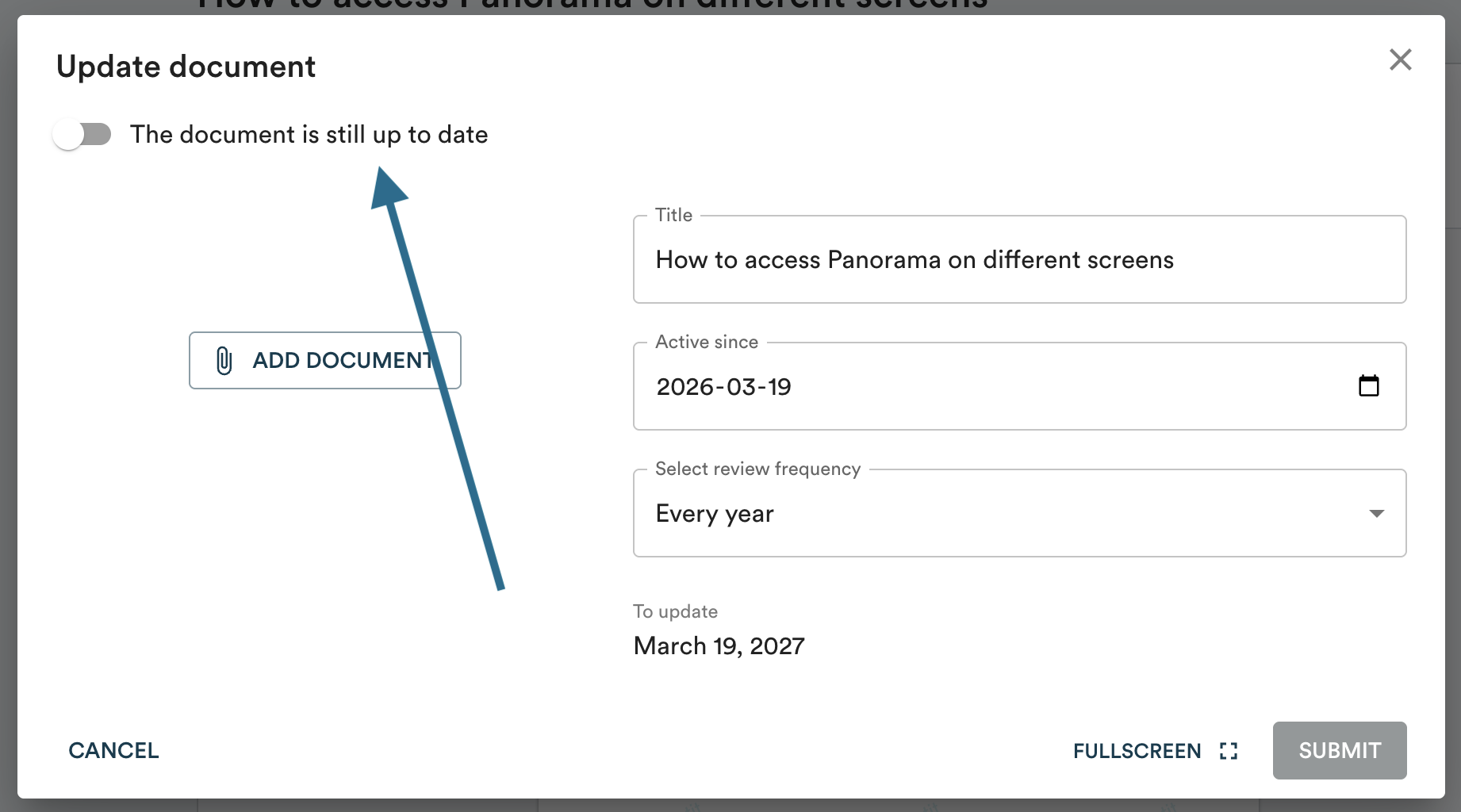
Open the document and click "Update".

-
Select "The document is still up to date" at the top of the window.
Note: Panorama does not send an email when a review is suggested. It is simply a visual reminder in the interface.
