
How Panorama displays your documents
Panorama automatically displays your documents in alphanumeric order in your agendas, minutes, and resolutions.
To display your documents in a specific order or to visually attach them to sub-topics, you can rename them directly in Panorama.
Renaming a document
- Click on the pencil on the topic where you want to attach a document
- Click "Add document" to attach your file (if not already done)
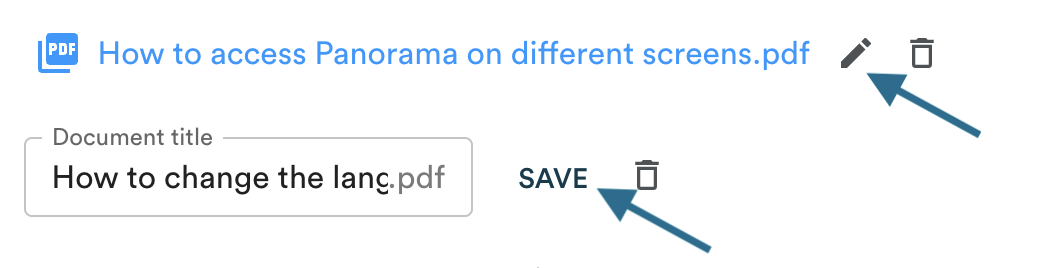
- Once the document is attached, click on the pencil next to the document name
- Rename the document according to the desired order
- Important: Click "Save" to save your changes
Tips for naming your documents
To organize your documents in the desired order, use numeric or alphabetic prefixes:
Example for sub-topics
- 4.1 Q4 Financial Report.pdf
- 4.2 Budget Forecast 2026.pdf
- 4.3 Investment Plan.pdf
Example with simple numbers
- 1-Annual Report.pdf
- 2-Financial Statements.pdf
- 3-Recommendations.pdf
This method allows you to precisely control the display order of your documents, regardless of their original name.