
Editing the participant list
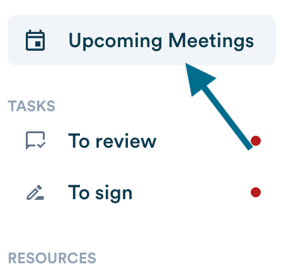
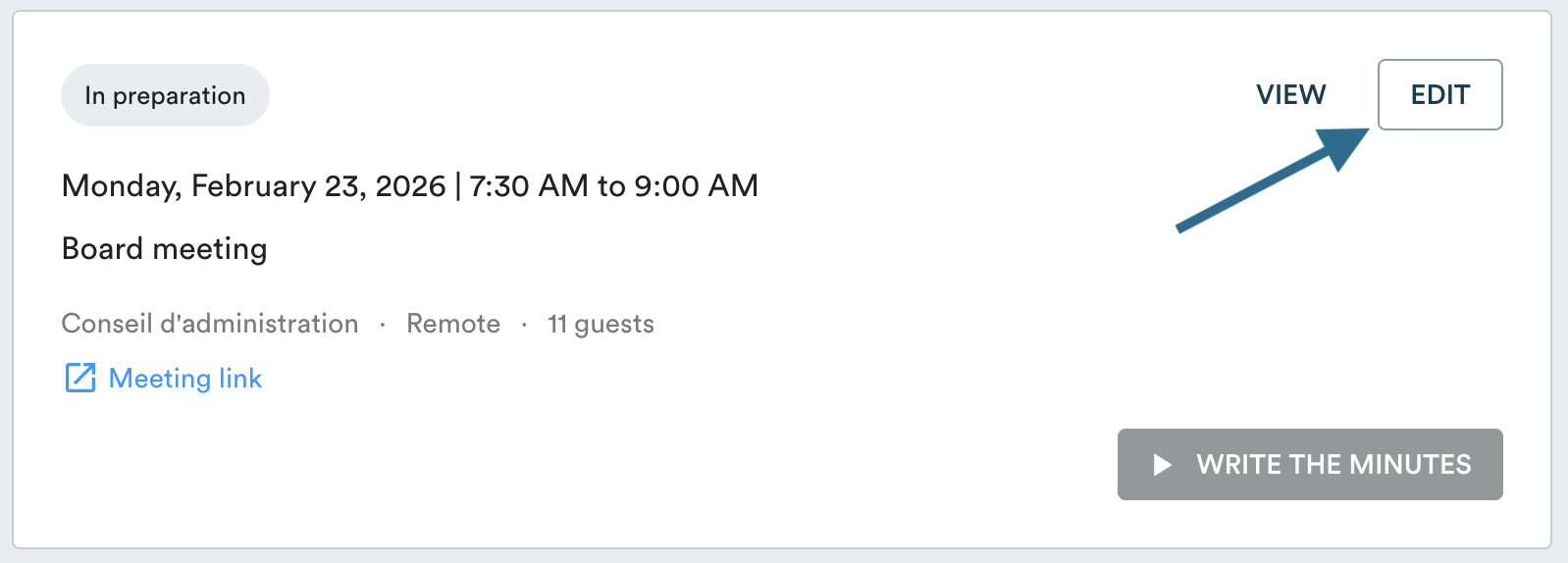
In your "Upcoming Meetings", click "Edit" on the relevant meeting.
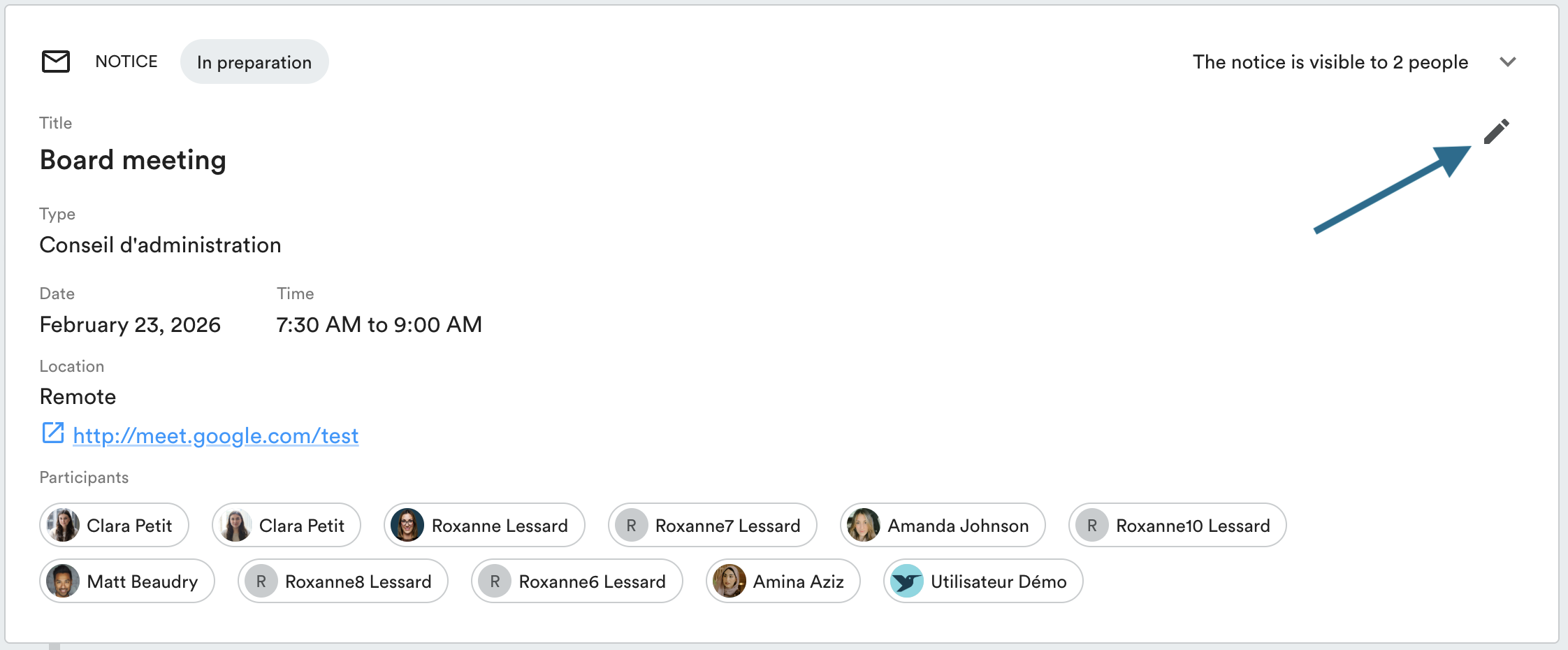
In the "Notice" section, click the edit pencil icon in the top right corner of the box.
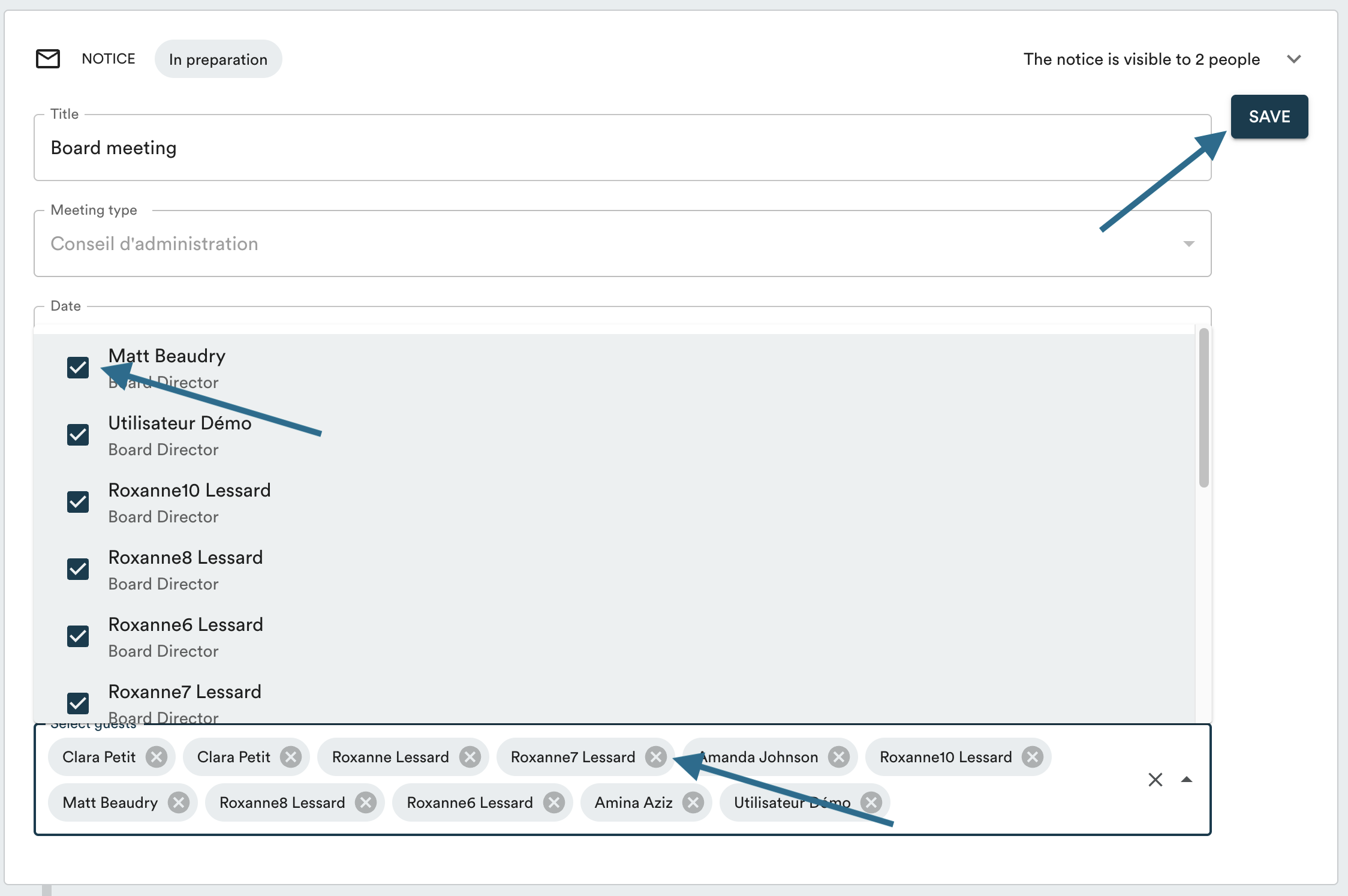
Then click the pencil icon to the right of the "Participants" box to update the list.
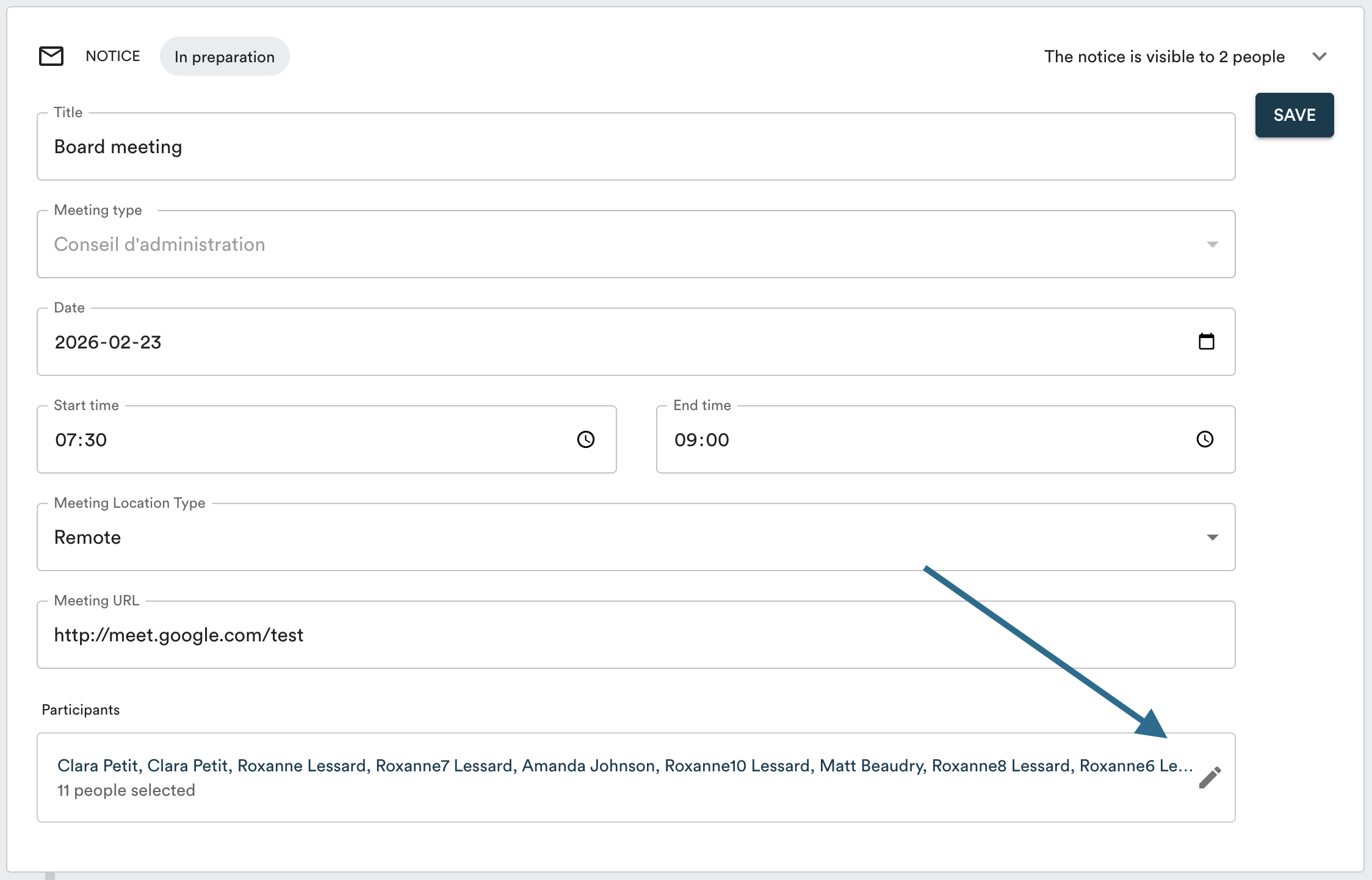
Make sure to click "Save" in the top right corner to apply your changes.
Adding a participant after the meeting
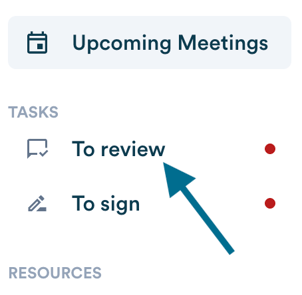
Once the meeting is over, the minutes will appear under "To Review". At that point, it is no longer possible to modify the participant list.
If someone was present but not included in the list, you can note their attendance by adding a note in the "Opening of the meeting and quorum" topic.
