Panorama lets you add comments on the topics and documents of a meeting without modifying their content. You can share a comment with all members, limit it to specific people, or keep it entirely private. Anyone with access to the document can read and publish comments.
Comments are available on agendas, minutes, and resolutions.
Add a comment
On desktop
- Open the document (agenda, minutes, or resolution).
- Locate the comment icon to the right of the relevant topic. A number indicates how many comments have already been published on that topic.
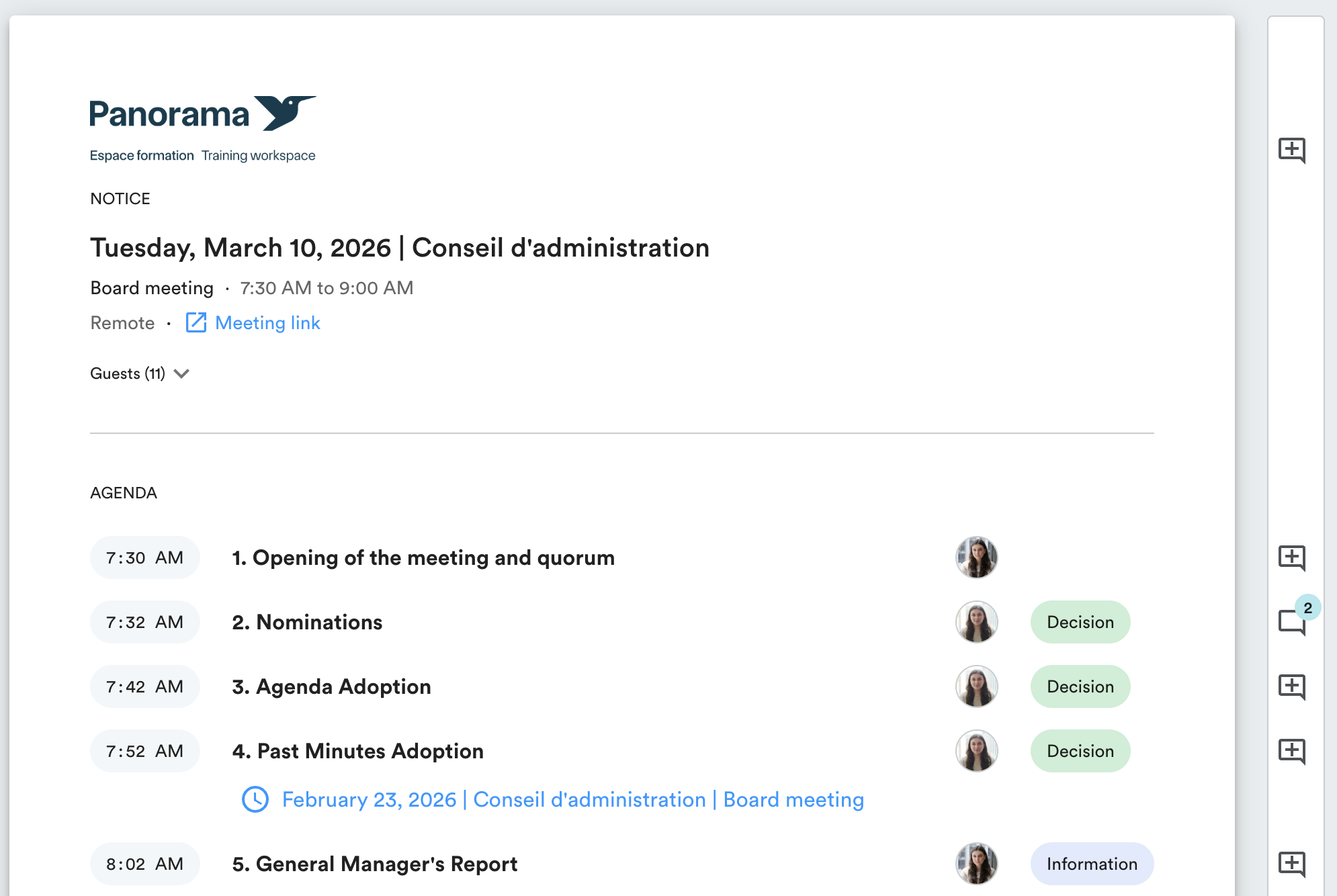
- Click the icon to open the comments panel.
- Type your comment in the text field.
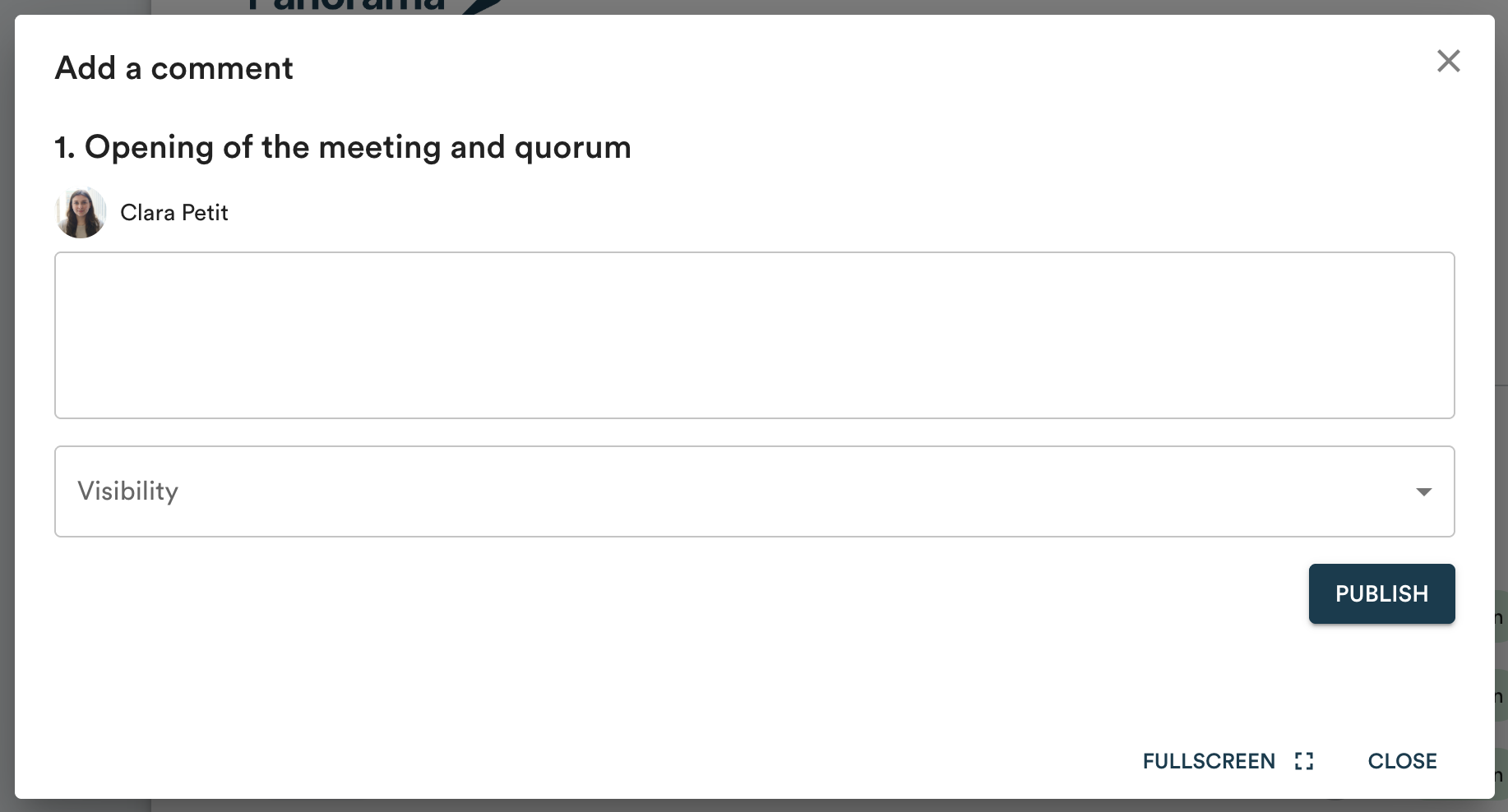
- In the "Visibility" menu, choose who can see your comment.
- Click "Publish".
On mobile
- Open the document.
- Under the relevant topic, click "Comments".
- Type your comment and select the desired visibility.
- Click "Publish".
Comment visibility
When publishing, you choose who can see your comment:
- Public: all users with access to the document can read the comment.
- Custom: only the users you select from the list can read the comment.
- Private: the comment is visible to you only.
Edit or delete a comment
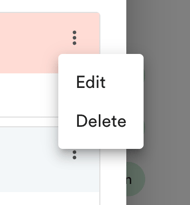
Click the three dots to the right of a comment, then select "Edit" or "Delete".