Important: On some accounts, document downloading may be blocked for security reasons at your organization's request. If you cannot access the download options described below, contact your account owner or write to us at support@usepanorama.com.
There are 3 types of documents in Panorama:
- PDF documents - Documents uploaded in PDF format
- Office documents - Word, Excel, PowerPoint files and other office formats
- Panorama documents - Documents created in Panorama (agendas, minutes, resolutions)
Download or print all documents from a meeting
To download all documents from a given meeting, go to your agenda page.
To get there, click "View" on the meeting in question from the "Upcoming meetings" tab.


Once on the agenda page, scroll down to the bottom to access the "Download all documents" button. The documents will be downloaded in a ZIP file.

How to extract a ZIP file
- On Mac: Double-click on the file, which will automatically create a folder containing the files
- On Windows: Double-click to view the contents, then click "Extract all..." in the toolbar, choose a destination and click "Extract"
To get the agenda in PDF format: Click "Print" at the bottom of the page.
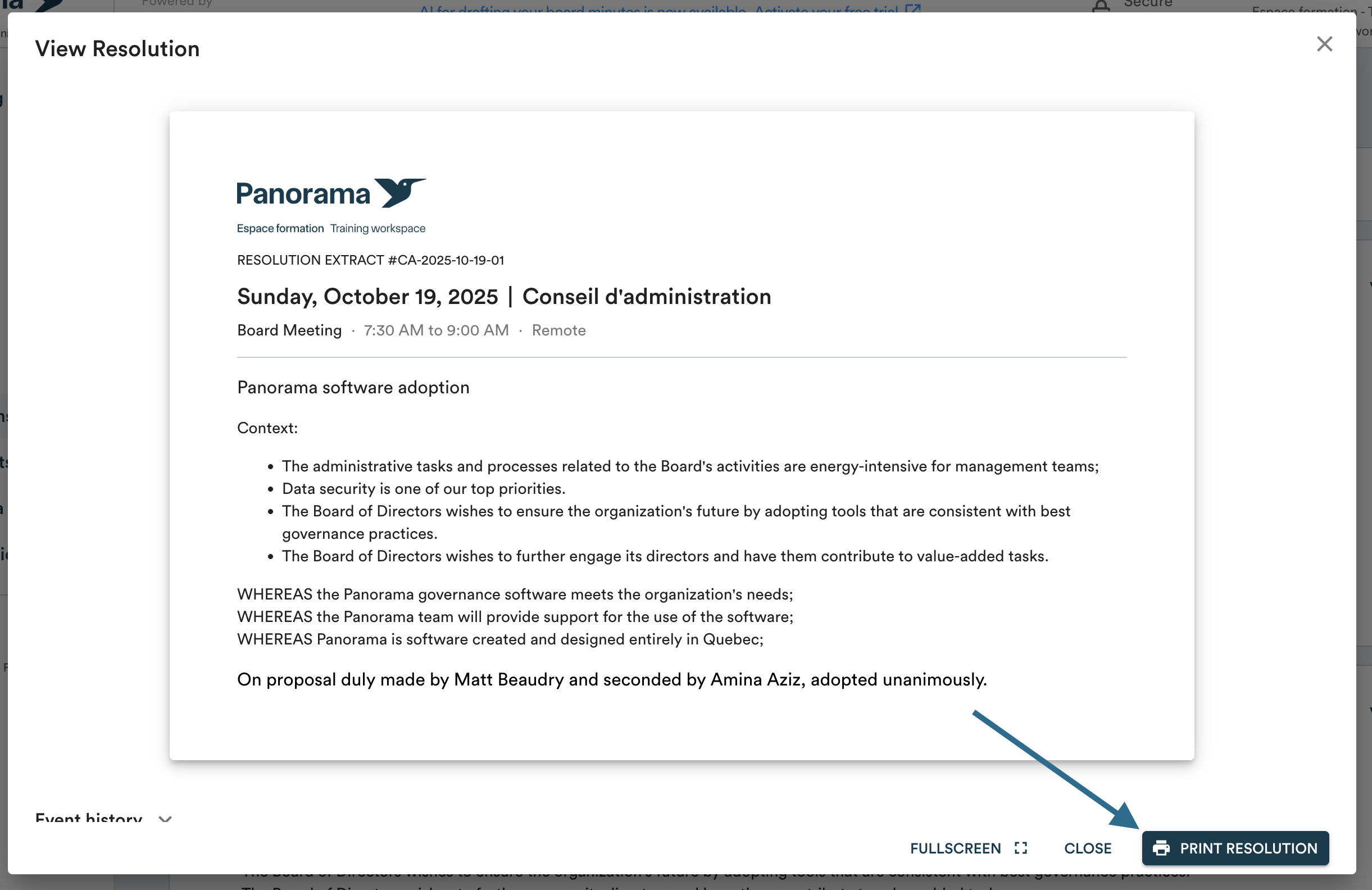
To get minutes or a draft resolution: Click on the document to open it, then click "Print".
Download or print a PDF document
A PDF document will always be preceded by this icon: [PDF icon]
To download or print it:
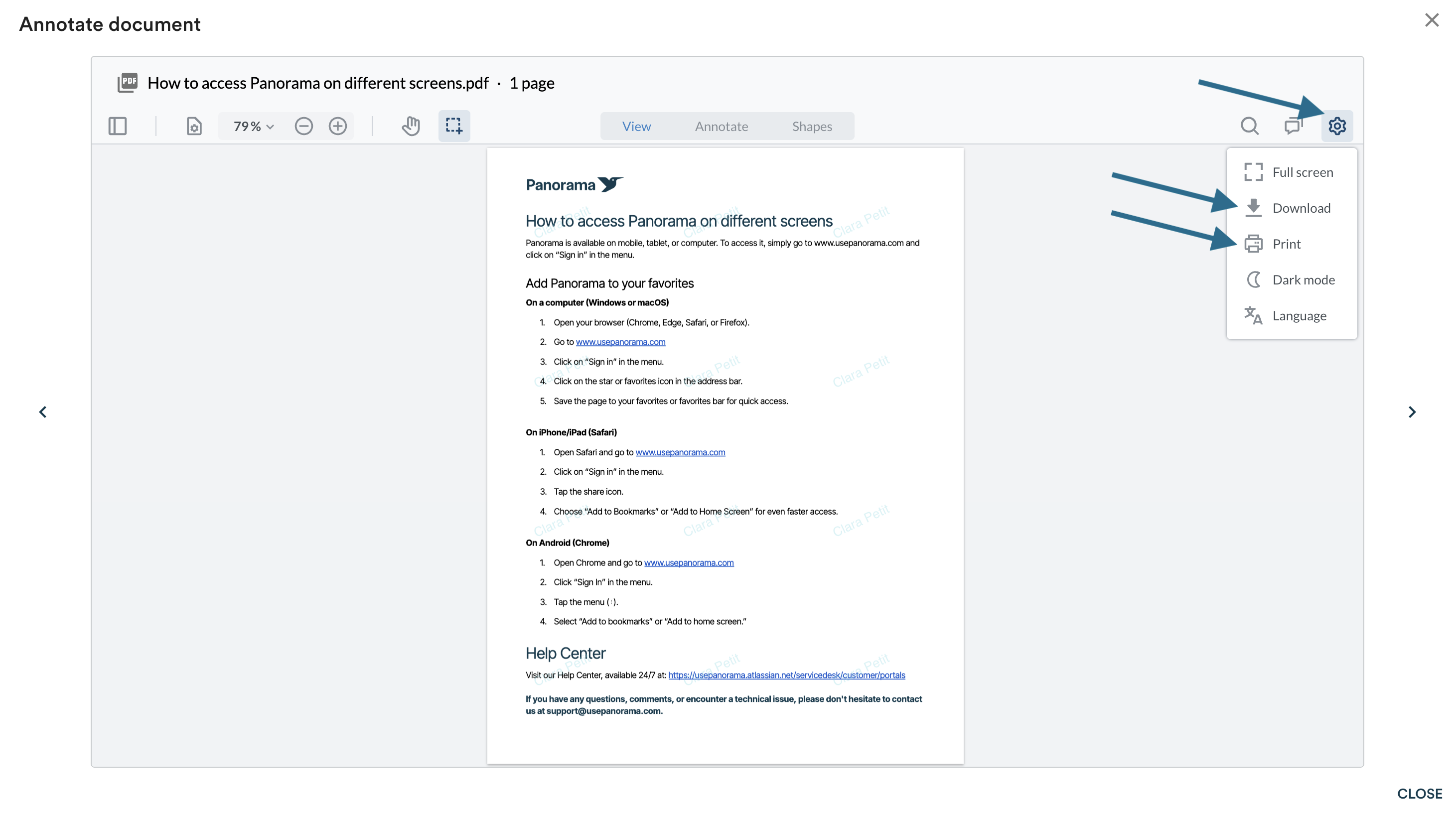
- Click on the document to open it
- Click on the gear icon at the top right of the screen
- Select "Download" or "Print" depending on what you want to do
Download or print an Office document (Word, Excel, PowerPoint)
Office documents cannot be opened directly in Panorama. As soon as you click on the document, it will be automatically downloaded to your computer.
To print it, then open it with the appropriate software (Microsoft Word, Excel, PowerPoint, etc.) and use that software's print function.
Download or print a Panorama document
For documents created in Panorama (agendas, minutes, resolutions):
- Click on the document to open it
- Click "Print" at the bottom of the document page
- In the print window, you can either print directly or save as PDF