
If your workspace requires two-factor authentication, you will be prompted to set it up the next time you log in. You will need your phone and an authenticator app to complete the setup.
Note: If you haven't created your Panorama account yet, complete the account creation steps before setting up two-factor authentication. Learn more about creating your account →
Step 1: Log in to Panorama
-
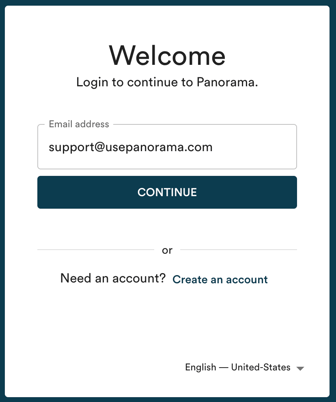
Go to usepanorama.com and enter your email address.
-
Click "Continue".
-
Enter your password, then click "Continue".
Step 2: Set up two-factor authentication
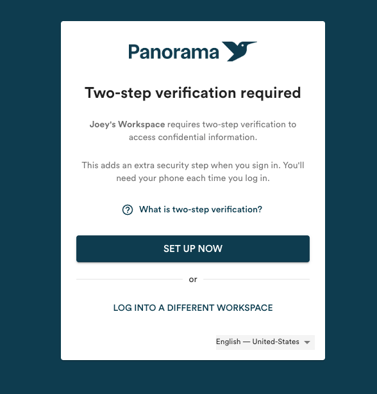
After logging in, a screen will notify you that your workspace requires two-factor authentication.
-
Click "Set Up Now".
-
A QR code appears on screen. Open your authenticator app on your phone and scan the QR code.
Note: You can use any TOTP-compatible authenticator app, such as Google Authenticator, Microsoft Authenticator, or the Passwords app built into your iPhone. If you can't scan the QR code, copy the text code displayed below it and enter it manually in your app.
.png?width=275&height=395&name=Add%20a%20little%20bit%20of%20body%20text%20(1).png)
-
Once the QR code is scanned, your app generates a 6-digit temporary code. Enter this code in the "Verification code" field.
-
Click "Verify & Continue".
You now have access to your Panorama workspace.
Example: using the Passwords app on iPhone
The Passwords app built into iPhone (iOS 18 and later) can be used as an authenticator app. After scanning the QR code, the app automatically creates an entry for Panorama and generates verification codes at each login.
.png?width=276&height=396&name=Add%20a%20little%20bit%20of%20body%20text%20(5).png)
.png?width=276&height=396&name=Add%20a%20little%20bit%20of%20body%20text%20(4).png)
Logging in after setup
Every time you log in using your password, Panorama will ask for a verification code. Simply open your authenticator app, find the temporary code associated with Panorama, and enter it to access your workspace.
Note: The code refreshes every 30 seconds. Make sure to enter it before it expires.