
Send meeting notices for all your meetings for the year
If you already know the dates of your board meetings for the year, we recommend creating them now in Panorama. Meetings are always created in the "under construction" status (visible only to other meeting creators) and you can choose to send meeting notices without publishing the agendas. Your directors will be able to block the dates in their calendars and you'll see all the meetings to prepare at a glance.
If you already use Teams or Outlook to send your meeting notices, creating meetings in Panorama is still useful: your directors will see upcoming meetings directly in the tool, without replacing their usual calendar.
Tip: Prepare the agenda for a first meeting before sending the other notices. You can then copy it from one meeting to another and use it as a template.
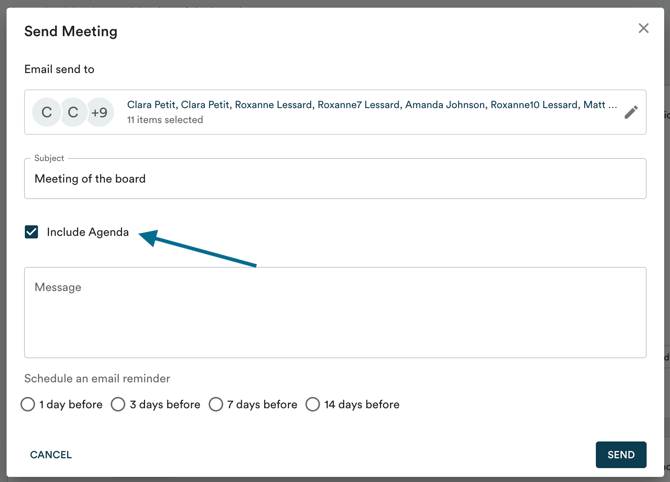
Tip: To publish the meeting without notifying the board, remove everyone from the "Email sent to" list except yourself after clicking "Send meeting". The meeting will be visible in Panorama without an email being sent to directors.
Create and send a meeting notice
To send a meeting notice, you must first create the meeting. Only users with meeting creation permissions can do this. Check your permissions under "Organization" > "Members". If you see the "Meetings" chip under the "Creation" column, you have meeting creation access.
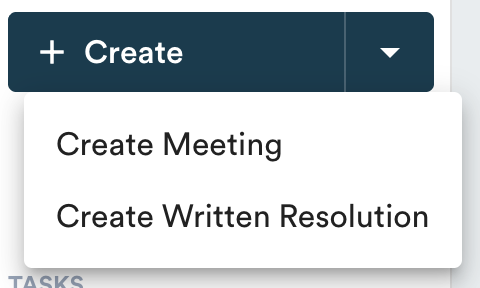
Click on "Create" then "Create a meeting" at the top left of the page.
Fill in the information: title, type/group, date and time, location and participants.
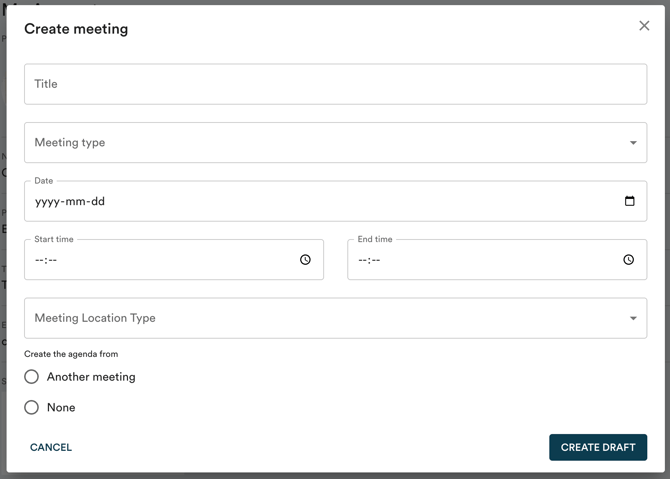
If you already have an agenda in Panorama, you can copy one from a previous meeting.
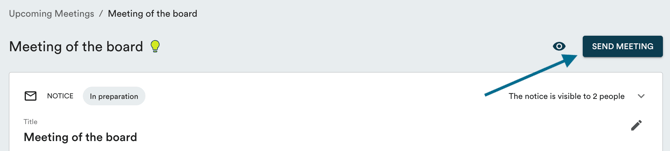
Once the draft is created and the meeting notice information is finalized, click "Send meeting" at the top of the page. Do not check the "Include agenda" box if you wish to continue working on it without making it public.
To make changes to the meeting notice, simply click on the pencil at the top left of the box. You will always be able to edit the meeting, even if it's been sent.