Once you click "Review minutes" and end the meeting, the minutes are available for review by all members with the appropriate permissions. You can check review permissions under the "Organization" > "Groups" tab.
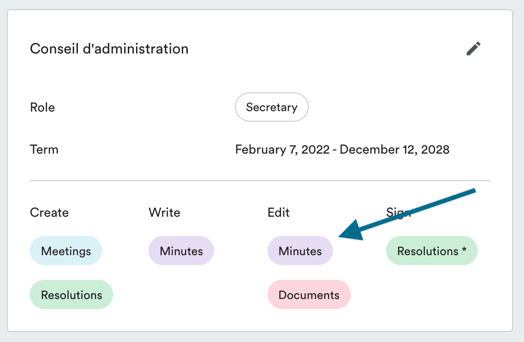
Only members with review permissions can read and edit the minutes until they have been published. Reviews are always optional: you can adopt minutes even if not all reviewers have validated them.
How to know if a document is awaiting review?
You can find documents awaiting review under "To review" in your tasks.
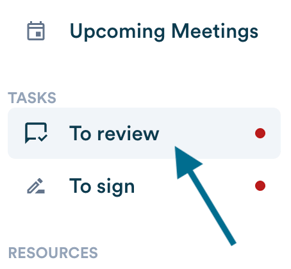
You won't be automatically notified by email that your review is expected on a document; you'll see a red dot next to the "To review" menu. However, someone else who has reviewed the minutes can send a notification to other reviewers to gather their feedback.
To do this, click the "Send minutes" button at the top of the minutes review page. As long as these minutes haven't been published, they can only be sent to other members with minutes editing permissions.

Editing the minutes
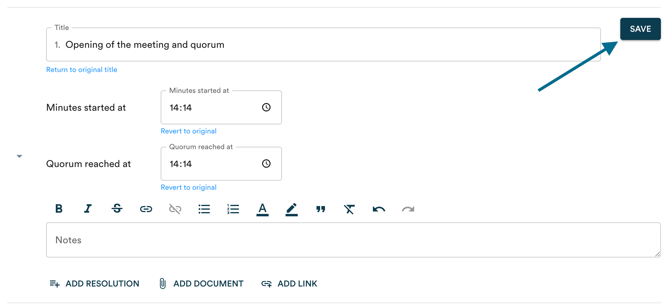
As with editing the agenda, you'll see on each minutes topic a button with a pencil at the top right that will allow you to edit the topic.

Important! Once you've made the necessary changes, you must click the "Save" button to save your changes at the top right of the topic.
Editing attendance
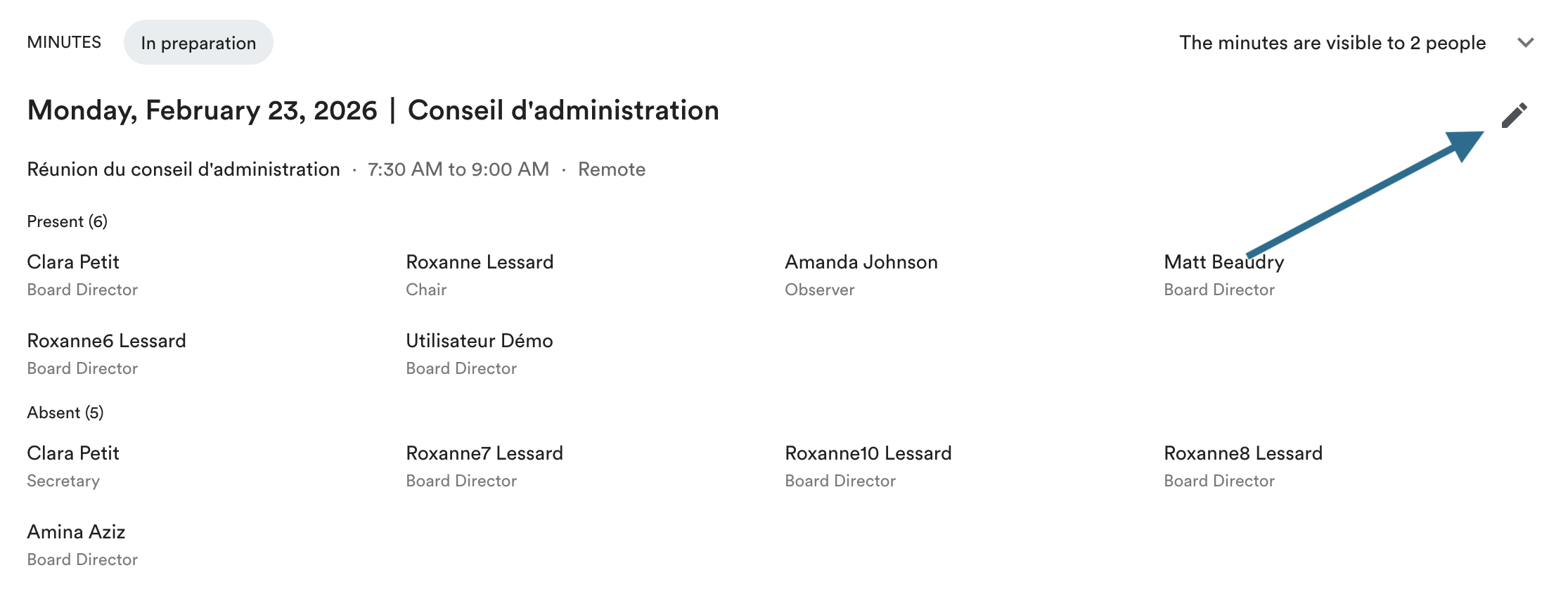
If you checked someone who was actually absent, or conversely forgot to check someone who was present (or someone arrived during the meeting), you can make changes in minutes review.
Simply click on the edit pencil at the top right of the minutes header.
You can then make the desired changes.
Modifying a resolution
If you adopted a resolution in the meeting, you can always make changes to it during minutes review. You can edit the title and text of the resolution, the mover and seconder, as well as the vote result.
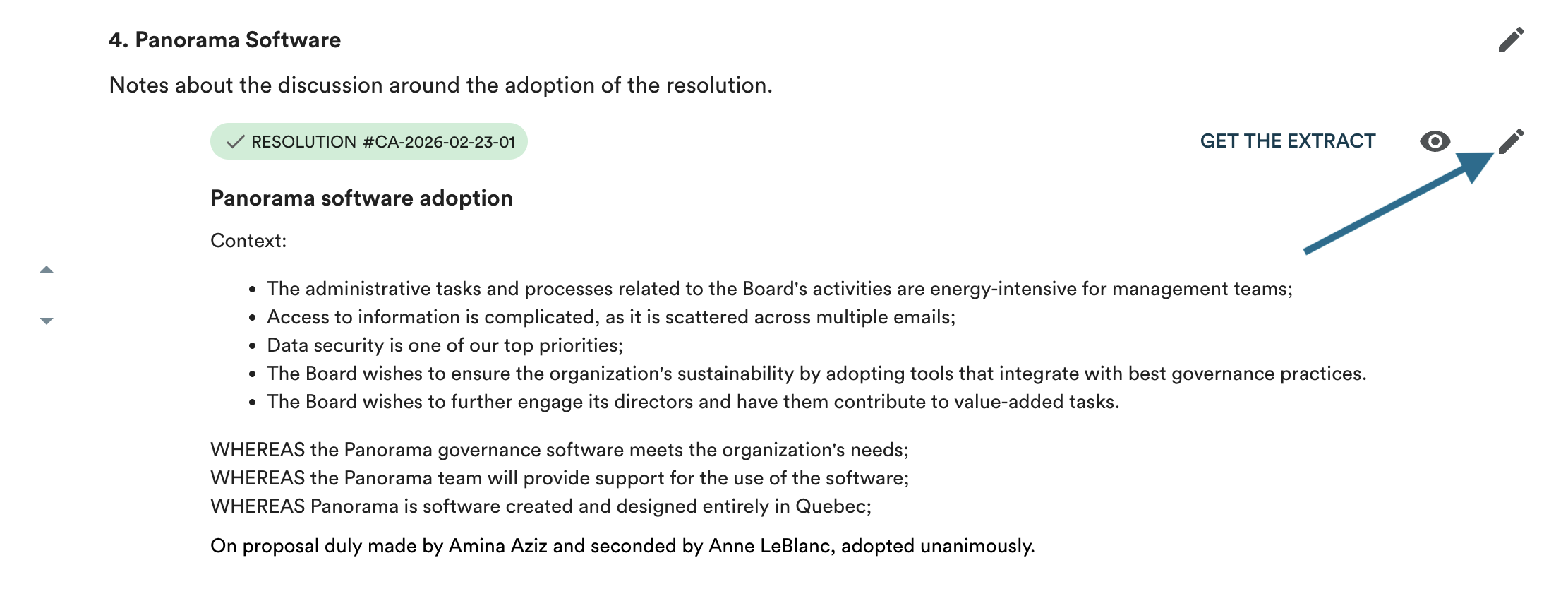
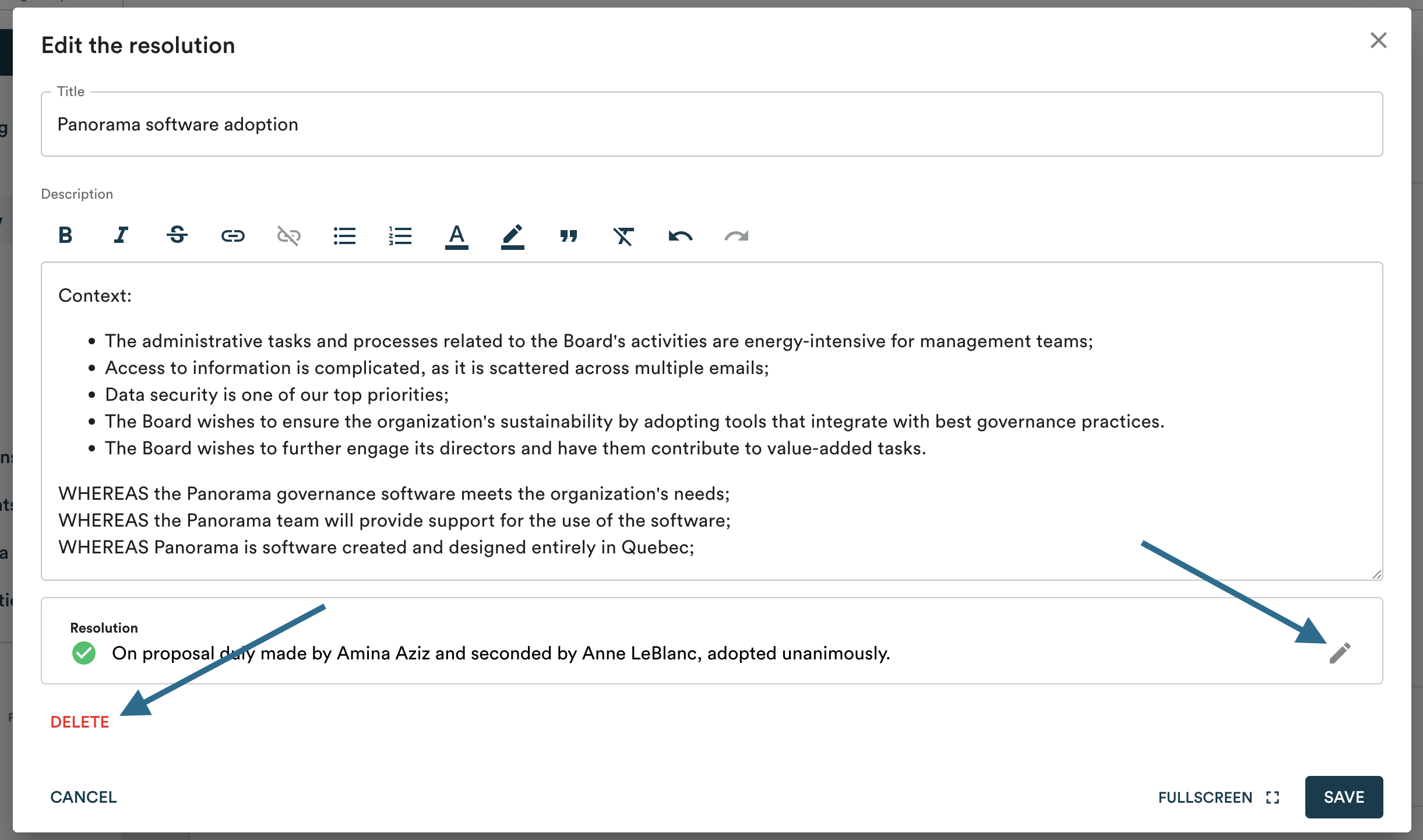
Click on the edit pencil on the resolution, then:
- Modify the title and text or delete the resolution
- Edit the motion (click on the pencil in the motion), edit the mover, seconder, and vote result
Applying your validation
Once you've made your changes to the minutes, you can click "Validate" to apply your review seal.
Panorama never blocks you from reviewing the minutes. You can always revalidate as long as they haven't been adopted in a meeting yet.

This doesn't notify other reviewers. To notify your review team, click "Send" at the top of the page.

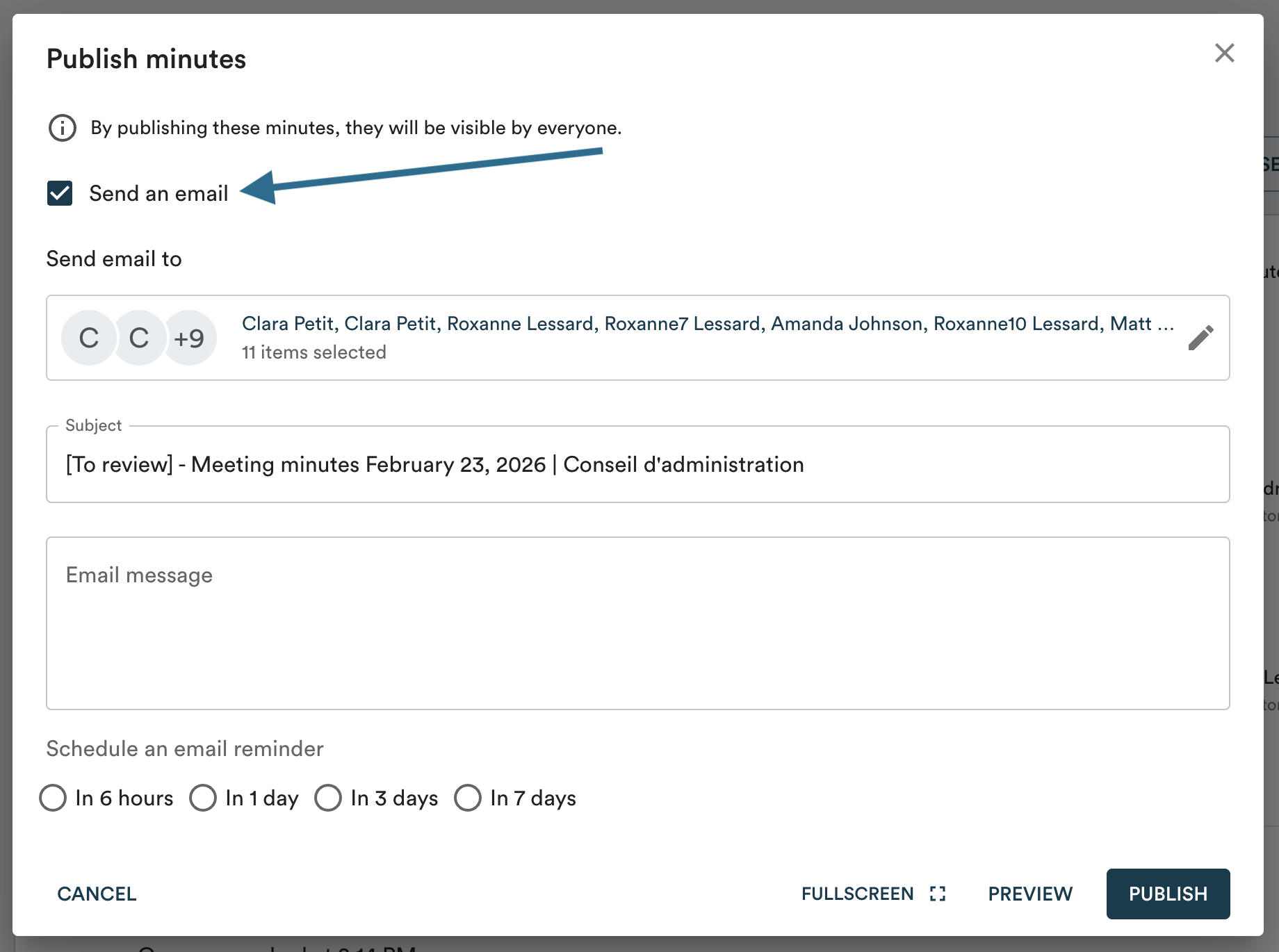
Publishing the minutes
For all members of your board to be able to consult the minutes, click "Publish" at the top of the page. This allows you, optionally, to send an email to meeting participants to notify them that they can consult the minutes.

This way, you can gather feedback by email from your board members and finalize your minutes text before its adoption at the next meeting.