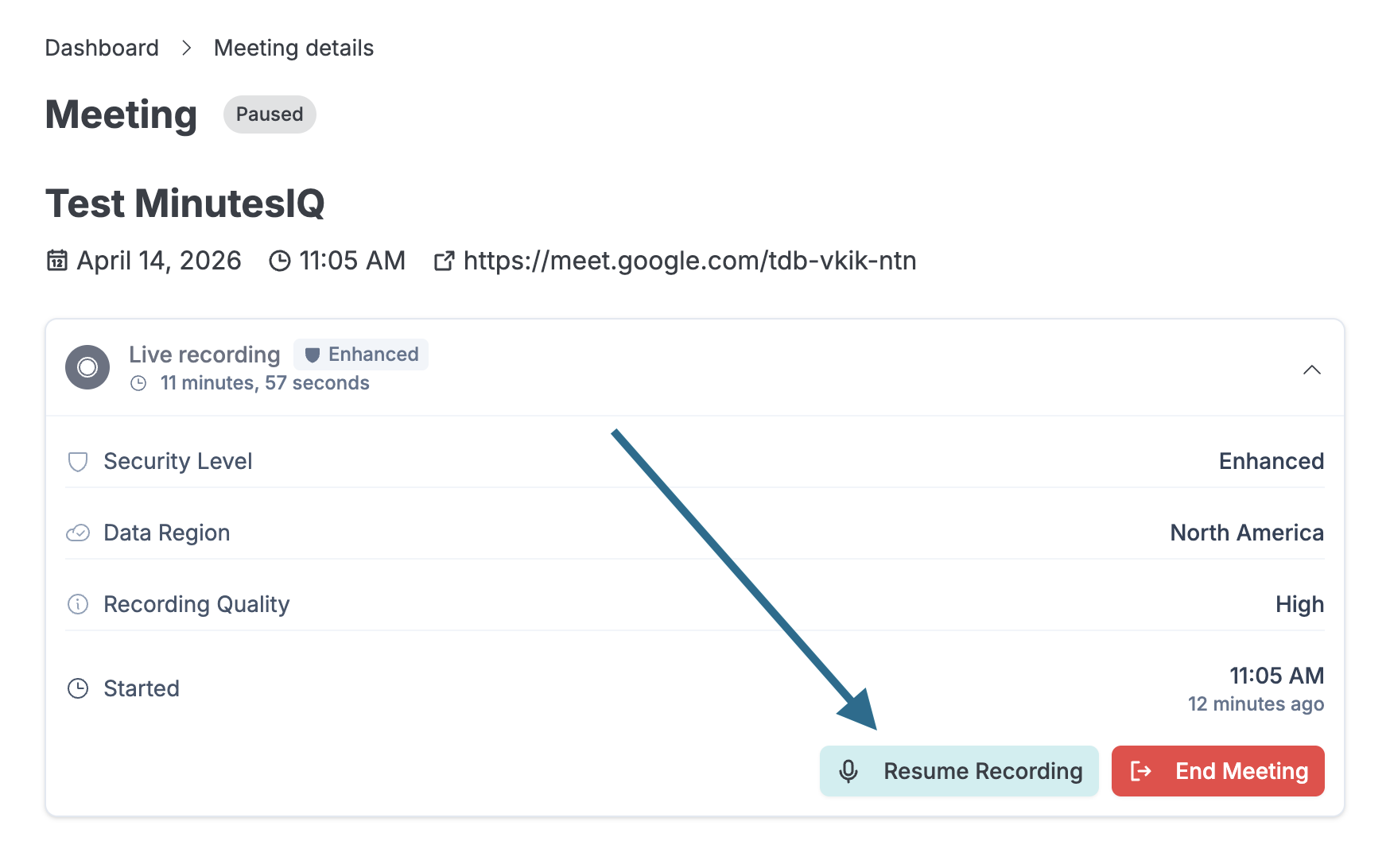
When your meeting goes in camera, you can pause MinutesIQ directly from the app. MinutesIQ stops listening and drafting, and participants see a confirmation message in the video call.
Content shared during the pause is not recorded and will not appear in the generated minutes.
Pause the recording
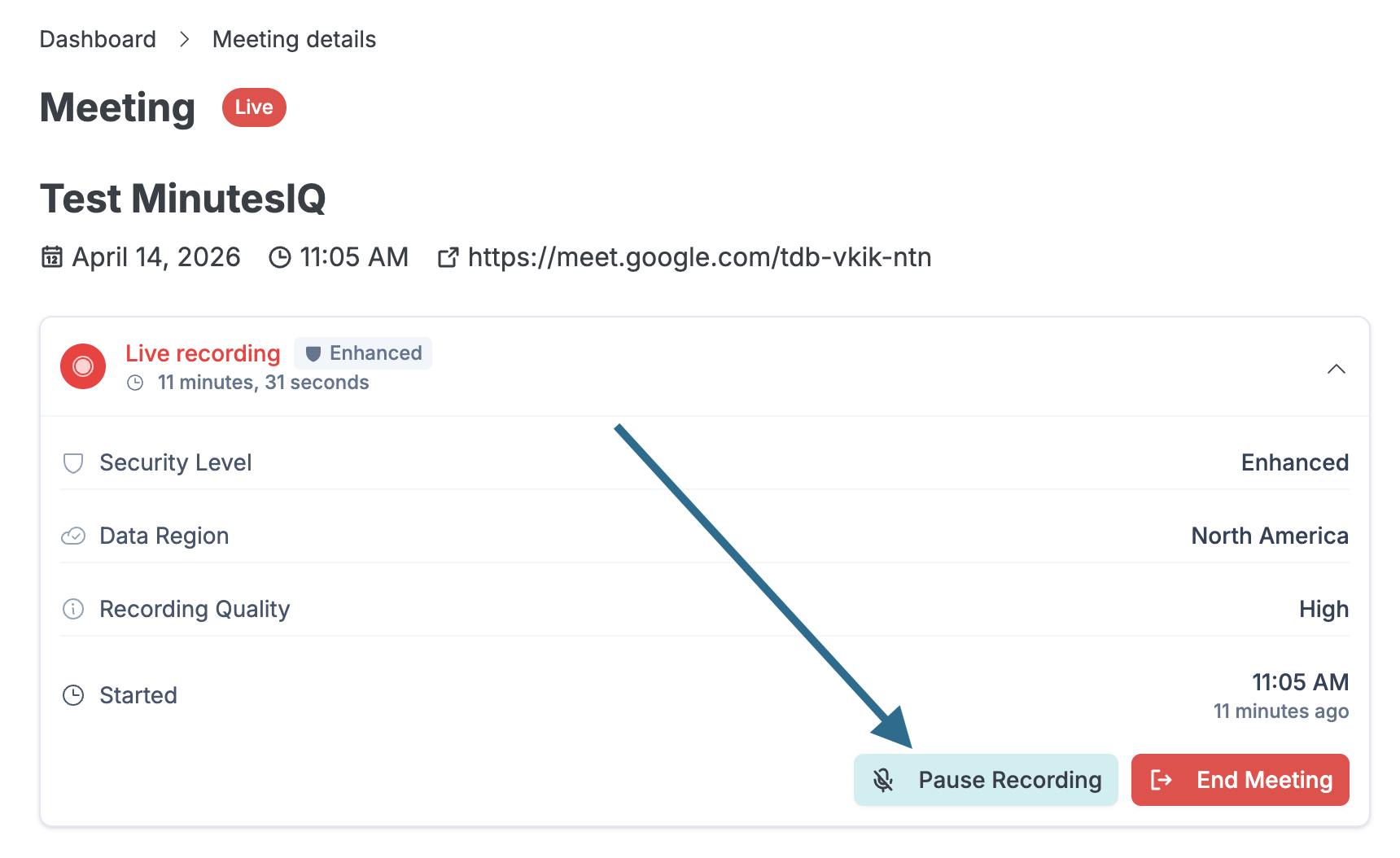
- From MinutesIQ (app.minutesiq.com), click on your live meeting. This opens the "Meeting Details" page.
- In the "Live Recording" section, click "Pause Recording".
- The meeting status changes to "Paused". In the video call (Teams, Meet, etc.), MinutesIQ displays the message "Listening on pause — Writing is suspended."
Resume recording after the in camera session
- Return to the "Meeting Details" page.
- Click "Resume Recording".
- MinutesIQ resumes listening and drafting where it left off.