- Creating a written resolution
- Sending the draft for adoption
- Editing a resolution already sent
- Deleting a draft resolution
- Rejecting a written resolution
Creating a written resolution
Only members with the necessary permissions can create a written resolution. If you do not see this option, you do not have access.
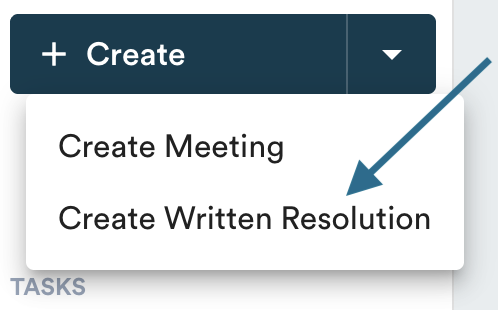
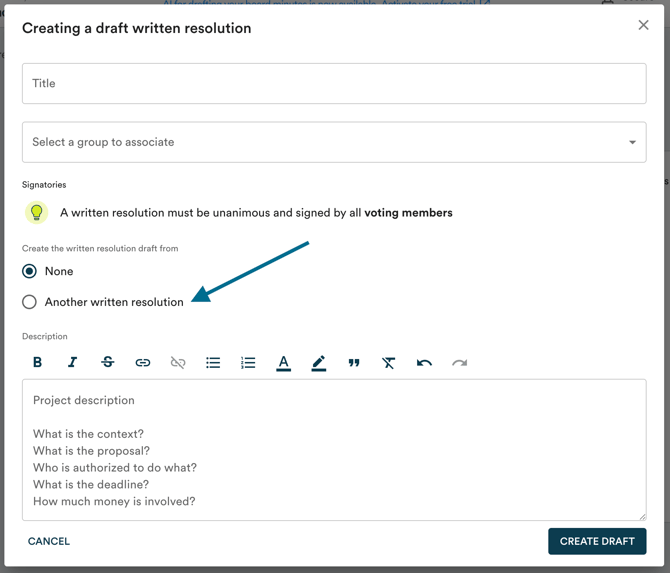
Click "Create" in the top left corner of the screen to start a new draft. Choose a title, associate a group and write the content of your resolution. If you have already created written resolutions, you can also start from a previous one.
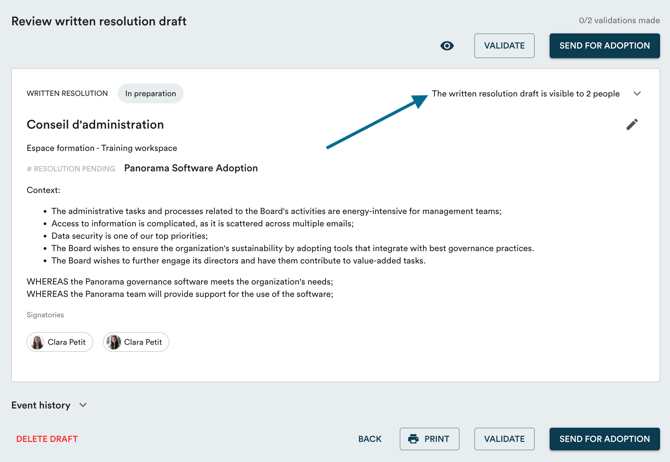
Draft written resolutions are visible to other board members with creation permissions. These members can review the draft before it is sent for adoption.
Sending the draft for adoption
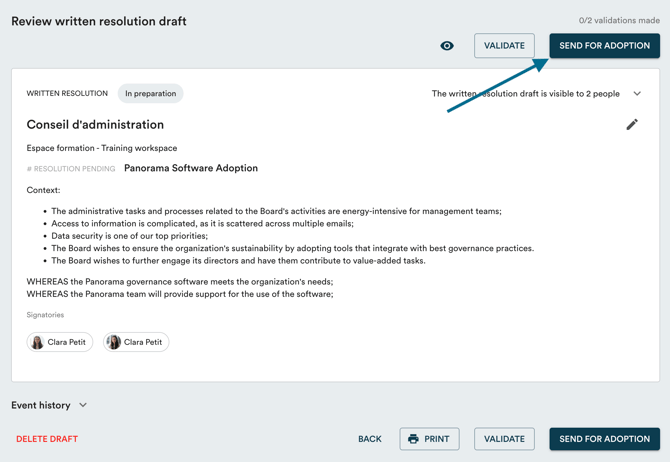
Once the resolution is ready, click "Send for adoption". You can edit the email subject, write a message and schedule an automatic reminder. The reminder will only be sent to members who have not yet signed.
Important: once the resolution is sent, it can no longer be edited without removing all existing signatures. Make sure the text is final before sending.
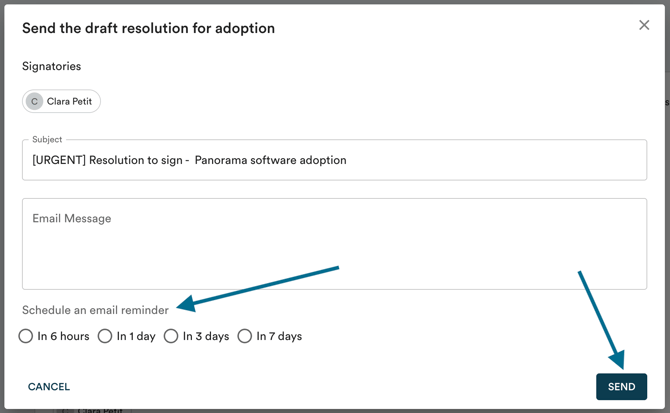
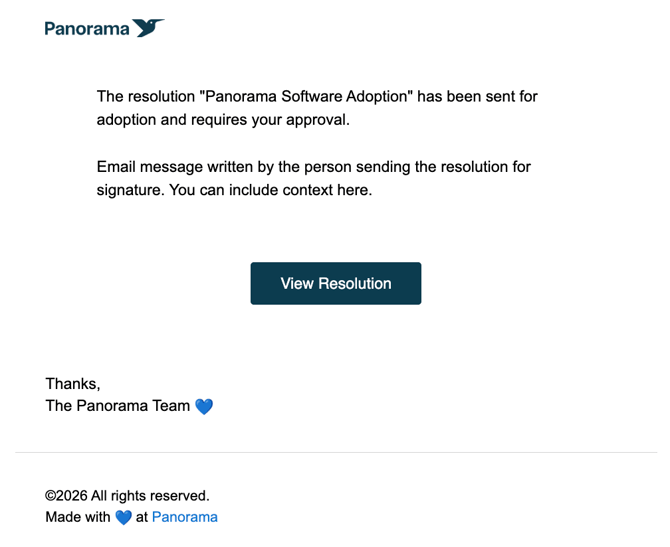
Signatories will receive an email inviting them to sign and adopt the resolution in Panorama by clicking "View resolution". Once sent, all members, whether signatories or not, will be able to view it.
You can resend the email at any time by clicking "Resend for adoption".
Once all signatures have been collected, the resolution is automatically adopted, added to the registry, and members with creation permissions are notified.
Editing a resolution already sent
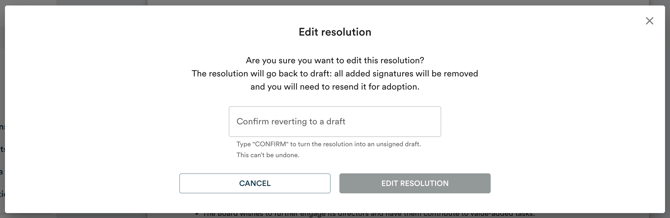
If you need to edit a resolution already sent for adoption, all existing signatures will be removed and you will need to resend it for adoption.

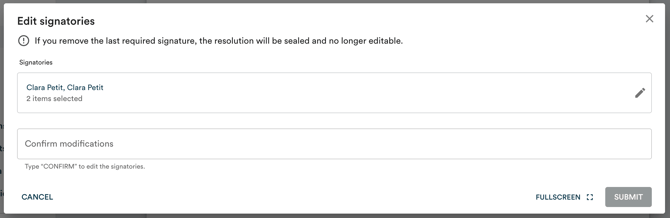
Adding or removing a signatory
You can modify the list of signatories on a resolution already sent for adoption without removing existing signatures.
Important: if you remove the last signatory whose signature is still required, the resolution will be automatically adopted and sealed. Make sure you want to trigger adoption before proceeding.
Deleting a draft resolution
As long as the draft has not been sent for adoption, you can delete it by clicking "Delete draft" in the bottom left corner of the page.

Rejecting a written resolution
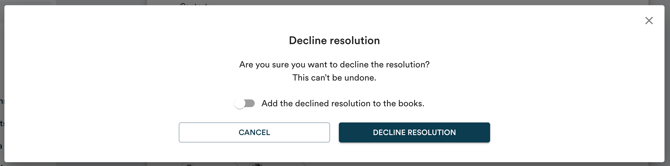
Only members with creation permissions can reject a written resolution that has already been sent for adoption. When rejecting, you will have the option to add the rejected resolution to the registry or not.