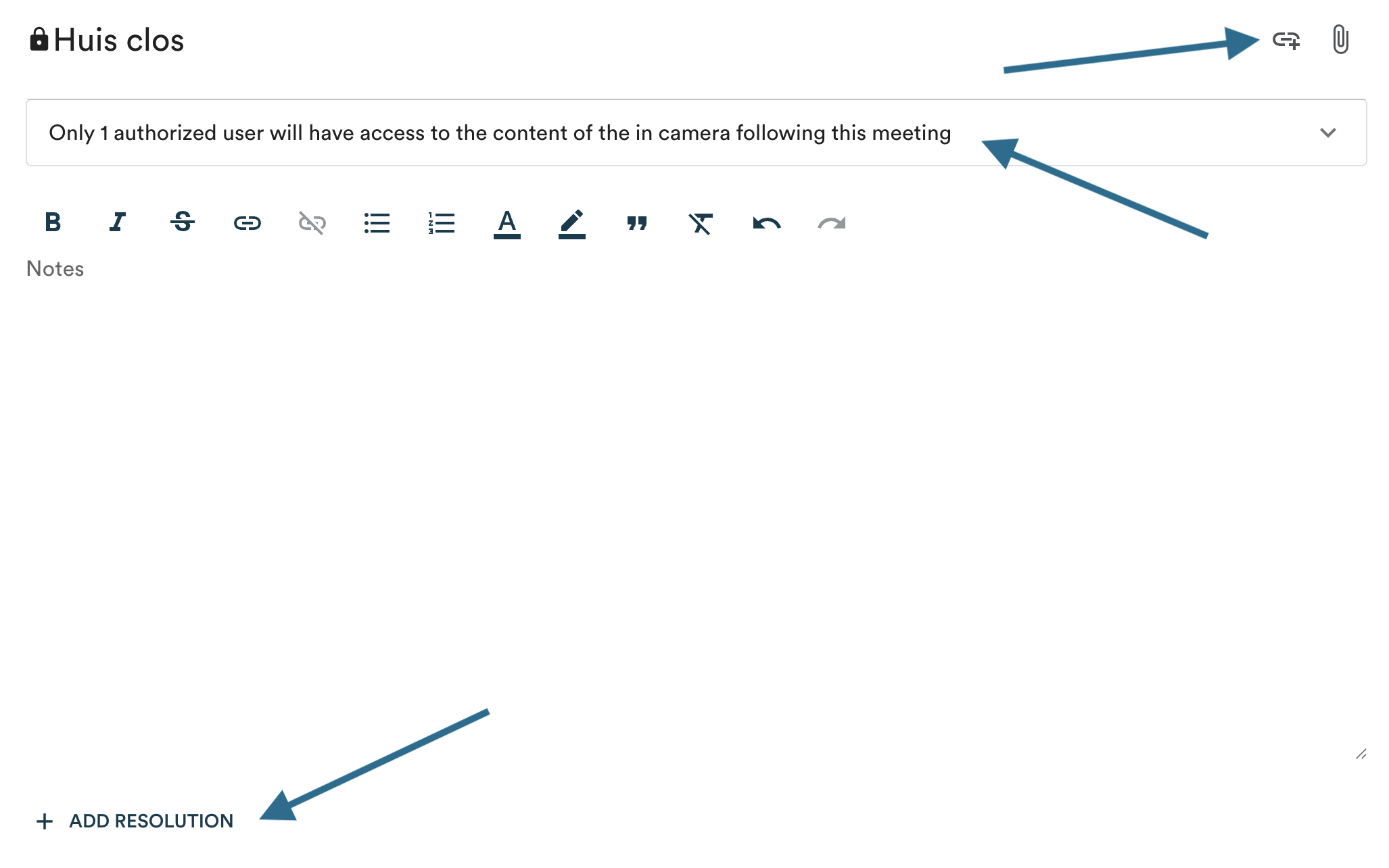
Panorama allows you to take notes and add documents to your in camera sessions. Only authorized participants will be able to access this content during and after the meeting. In camera notes are never visible to unauthorized users and cannot be edited or added after the meeting is adjourned.
Permissions are set for each meeting individually during agenda preparation. Learn more about preparing the agenda →
Why have an in camera session?
In camera sessions are an integral part of sound governance within a board of directors. They are used to discuss confidential matters: human resources issues, legal advice, sensitive negotiations, or any topic requiring a discussion restricted to board members without senior management present.
It is recommended to include an in camera session on every agenda, even when you don't expect to use it. This avoids having to request one in a potentially difficult situation.
Setting access permissions
During agenda preparation, you can select which users will have access to in camera notes. Only these users will be able to add notes and documents during the meeting (provided they also have minutes writing permissions) and view this content after the meeting is adjourned.
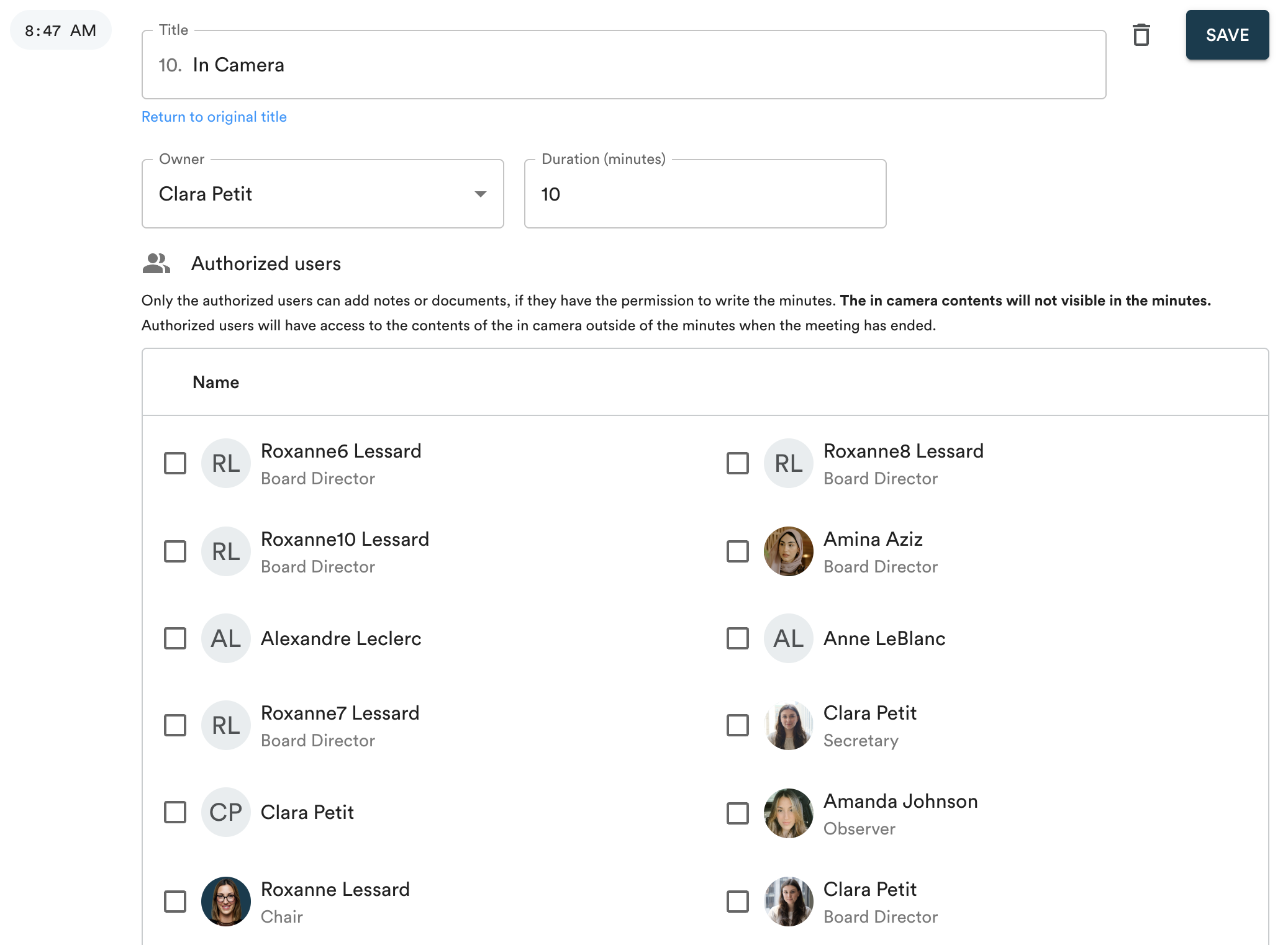
In camera notes and documents are accessible only in the "In Camera" section of the software, and each authorized participant can only see the sessions for which they have been granted access.
If no access is configured
If you do not select any users during agenda preparation, no one will be able to add notes or documents to the in camera session. This is a valid option if you want to include an in camera session on the agenda without recording any information.
Taking notes and adding documents
If the person taking the minutes has access to the in camera session, they can continue taking notes and add documents as needed. For more details on note-taking during in camera sessions, please refer to the guide →
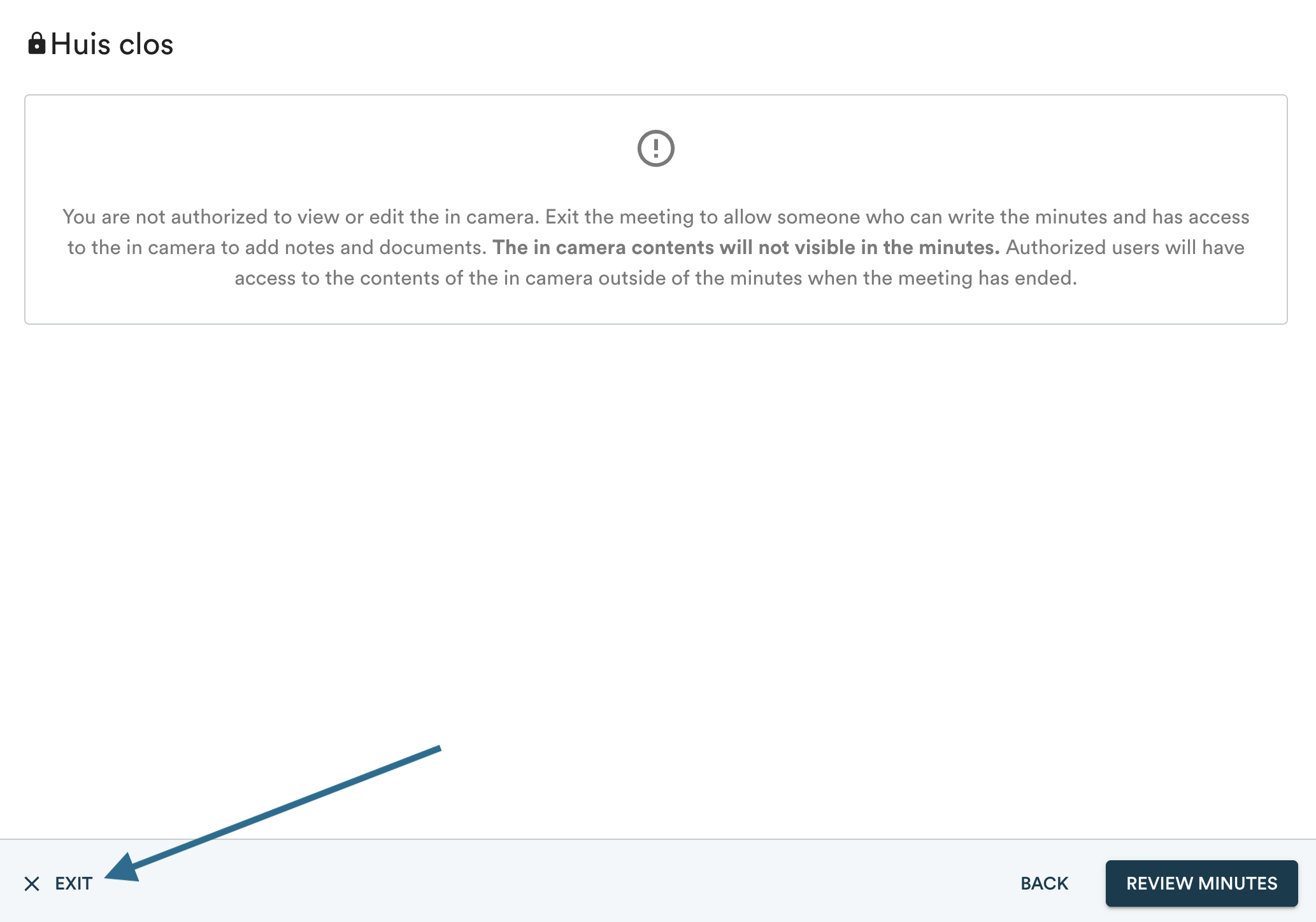
If they do not have the required permissions, they will see a message informing them. They can then click "Exit" in the bottom left corner to exit the note-taking module and allow an authorized participant to take over by clicking "Write the minutes".