
Welcome to Panorama! Here's a quick guide to help you learn how to use the software (app.usepanorama.com). The software is available on mobile, tablet, or computer.
In this guide
- Create your Panorama account
- Add Panorama to your bookmarks
- Receive the notice and add the meeting to your calendar
- Prepare for the meeting
- Comment on meeting items and documents
- Follow and participate in the meeting
Creating your Panorama account
It's important that you create your Panorama account as soon as possible so your team can send you the relevant documentation for your first board meeting before the meeting date, within applicable deadlines.
You will have received an email from no-reply@mail.usepanorama.com with all the steps to follow to access your Panorama space.
To access Panorama, go to www.usepanorama.com and click on "Log in" in the menu.
Bookmarking Panorama
We recommend bookmarking the software link so you can quickly find it again.
On computer (Windows or macOS)
-
Open your browser (Chrome, Edge, Safari or Firefox)
-
Go to www.usepanorama.com
-
Click on the star or bookmark icon in the address bar
-
Save the page to your bookmarks or bookmark bar for quick access
On iPhone/iPad (Safari)
-
Open Safari and go to www.usepanorama.com
-
Click on "Log in" in the menu
-
Tap the share icon
-
Choose "Add to favorites" or "Add to Home Screen" for even faster access
On Android (Chrome)
-
Open Chrome and go to www.usepanorama.com
-
Click on "Log in" in the menu
-
Tap the menu (⋮)
-
Select "Add to favorites" or "Add to Home Screen"
Receiving the meeting invitation and adding the meeting to your calendar
You will receive a meeting invitation email where you can add the meeting to your calendar. The event will not be automatically added to your calendar if you don't click on the link in the email (example below on Gmail, functionality will be similar on Outlook).
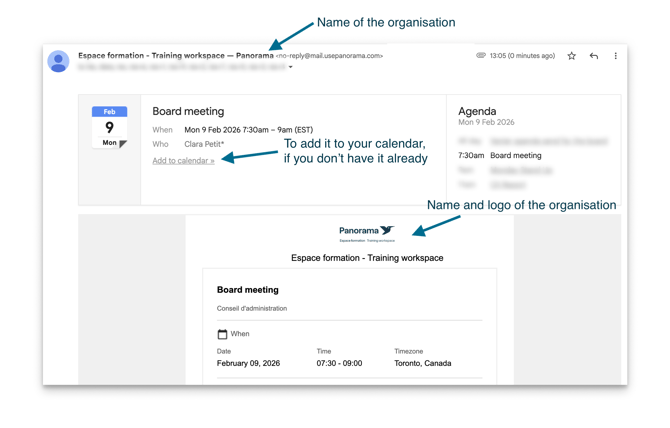
Note: Your management team may continue to send you calendar invitations via Teams or Google, as you did before. Panorama is where you will consult all the relevant documentation for the meeting.
Preparing for the meeting
All relevant documentation for your involvement on the board of directors will be available in Panorama. When the agenda is ready, you will receive it by email with all available documents.
Accessing Panorama from the email
If you click on a document, or on the "Open in Panorama" button in the email, you will be taken directly to the software.
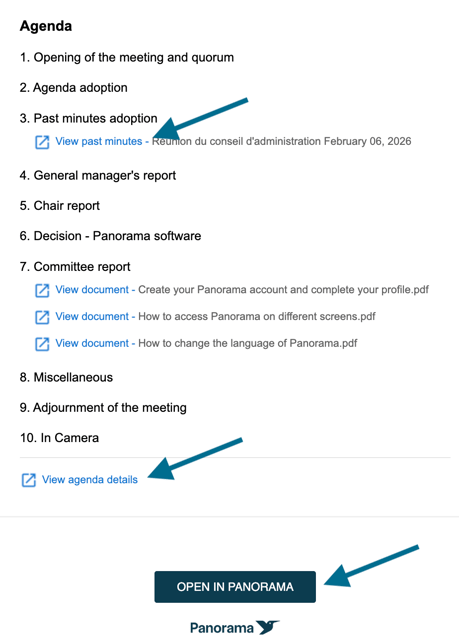
If you click on a document, it will open directly in Panorama:
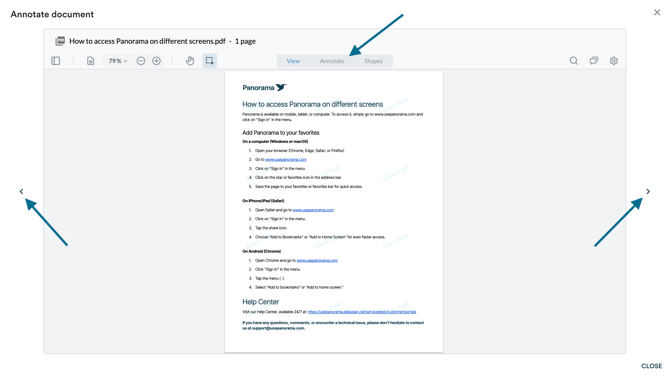
This is where you can annotate your document to prepare for the meeting. Your annotations are completely private. You can use the arrows on the left and right of the documents to navigate from one document to another.
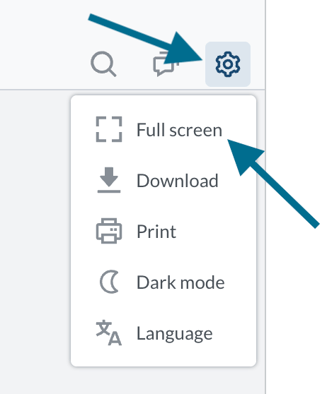
To open the document in full screen, click on the gear icon at the top right of the document, then click on "Full screen"
Click on "X" at the top right or on "Exit" at the bottom right of the page to leave this page and return to the agenda page.
Accessing Panorama directly
You can also navigate directly to Panorama at app.usepanorama.com to find upcoming meetings.
In the "Upcoming meetings" tab, you will see the next scheduled meetings.
To view the detailed agenda and annotate documents in preparation for your meeting, click on "View":

Click on a document to open it, on the arrows on the left and right of the document to navigate from one document to another, and on the gear icon to switch to full screen mode (see above).
You can also click on "Annotate":
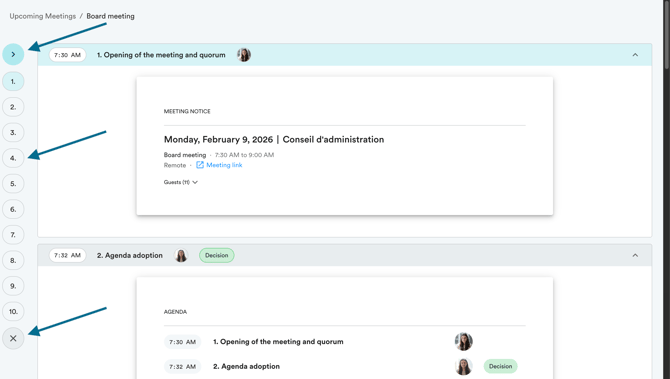
The left navigation bar allows you to easily navigate from one item to another. You can see the details of agenda items by clicking on the arrow at the top of this navigation bar.
Click on a document to open it, on the arrows on the left and right of the document to navigate from one document to another, and on the gear icon to switch to full screen mode (see above).
To exit this view, click on "Exit" or "X" at the bottom of the left navigation, or on "Upcoming meetings" in the menu at the top of the page.
Comment on meeting items and documents
Panorama lets you add comments on meeting topics and documents, agenda, minutes, resolutions, without modifying their content. You can share a comment with all members, limit it to specific people, or keep it entirely private to prepare your contributions.
On desktop
- Open the agenda from your email or from "Upcoming meetings".
- Locate the comment icon to the right of the relevant topic. A number indicates how many comments have already been published on that topic.
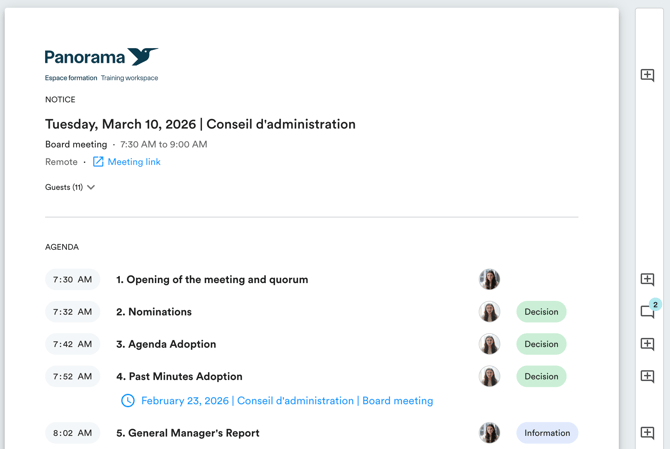
- Click the icon to open the comments panel.
- Type your comment in the text field.
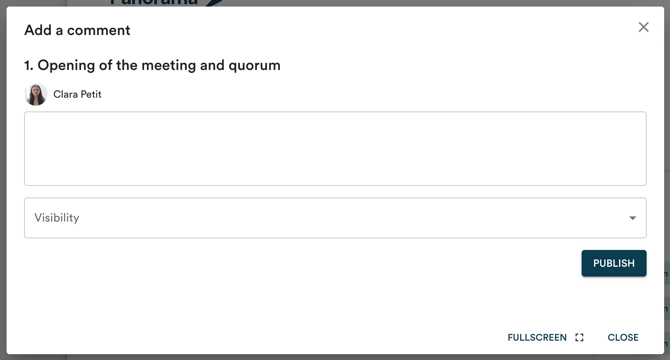
- In the "Visibility" menu, choose who can see your comment.
- Click "Publish".
On mobile
- Open the agenda.
- Under the relevant topic, click "Comments".
- Type your comment and select the desired visibility.
- Click "Publish".
Comment visibility
When publishing, you choose who can see your comment:
- Public: all users with access to the document can read the comment.
- Custom: only the users you select from the list can read the comment.
- Private: the comment is visible to you only.
To edit or delete a comment, click the three dots to the right of the comment, then select "Edit" or "Delete".
Following and participating in the meeting
If you are attending the meeting remotely, you can click on "Join the meeting" directly from your Panorama space at app.usepanorama.com:

This will open the video conference link in a new tab, and you can then click on "View" to follow the agenda and see the questions or comments you annotated that you wanted to ask or make during the meeting.
Use the estimated start time for each item to keep track of time!
If you have any questions, comments, or encounter a technical issue, please don't hesitate to contact us at support@usepanorama.com.