
Welcome to Panorama! We're delighted to welcome you to your new governance space where you'll find all the relevant documentation for your board meetings.
Our team is here to support you every step of the way: don't hesitate to write to us at support@usepanorama.com including screenshots if you encounter any bugs, have questions, suggestions, or other concerns.
Important: It's essential that you create your account within days of receiving the emails to ensure you receive the relevant documentation for your upcoming meetings.
Account creation emails
You will receive 2 emails from the Panorama team. One includes the steps to follow to create your account, and the second an invitation to create this account along with a temporary password.
If the temporary password has expired, write to us at support@usepanorama.com so we can send you a new one.
Make sure to use the credentials specified in the email. If you want to change the email address used to create your account, write to us at support@usepanorama.com.
Click on "Login" at the bottom of the email to create your account.
Creating your Panorama account
Create your own password
Once you've clicked on "Login", you'll land on this page. Make sure the email address is correct and click "Continue".
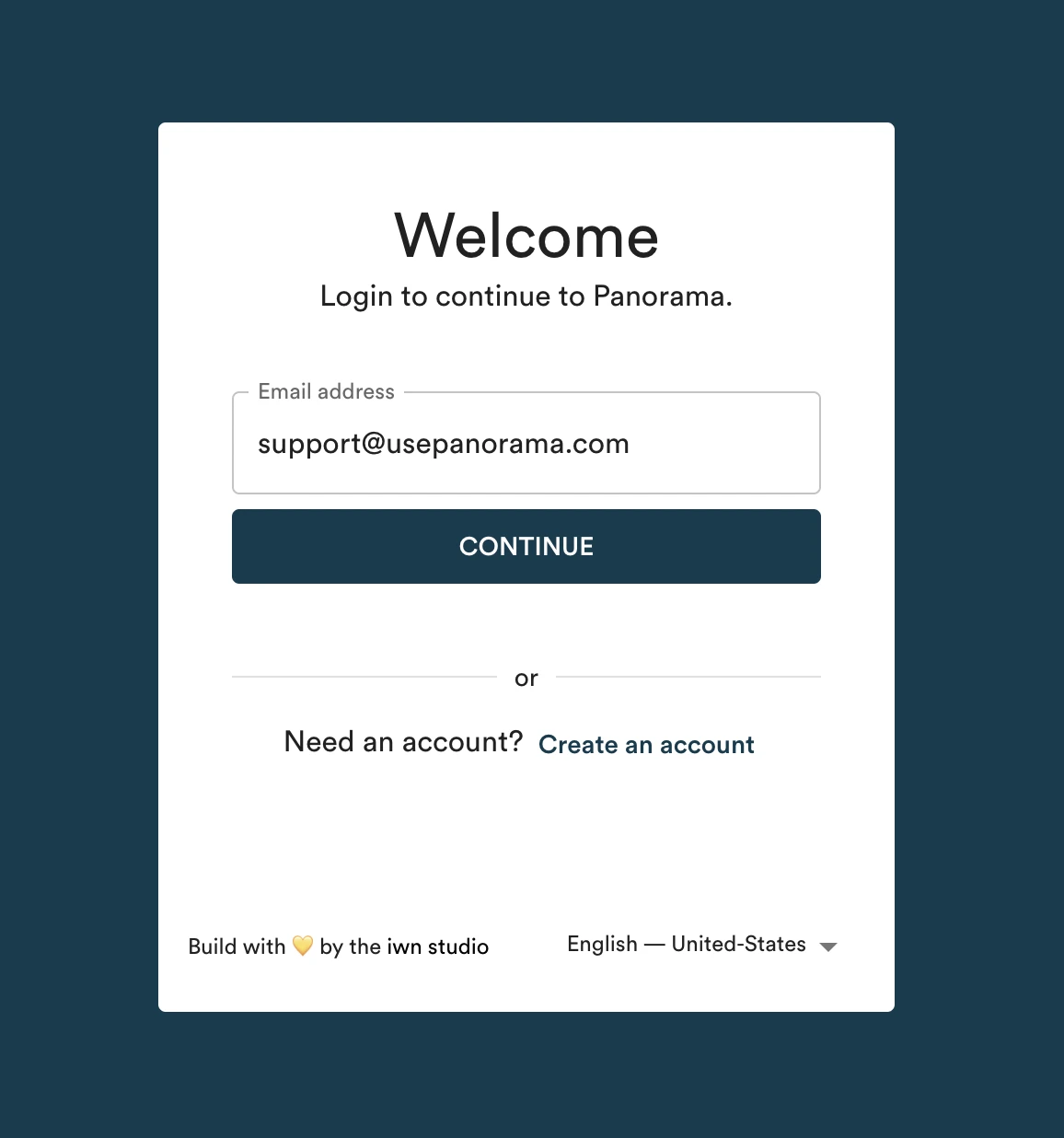
You can change the site language by clicking on the dropdown button at the bottom right of the white box.
Enter the temporary password that was sent to you by email in the "Password" field.
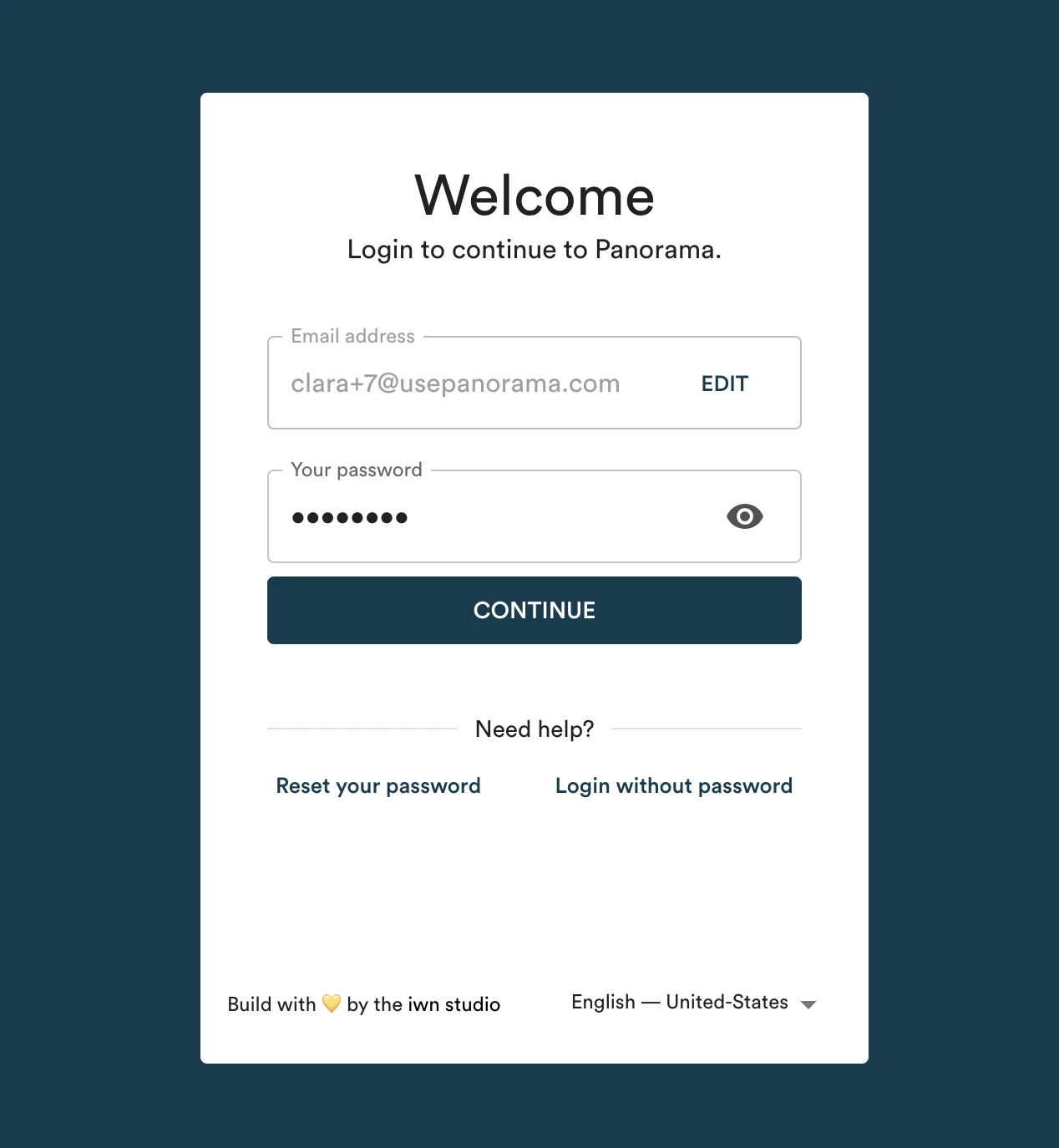
Has your password expired? Write to us at support@usepanorama.com so we can send you a new one.
Click "Continue". You'll then be asked to create a new password that only you will know.
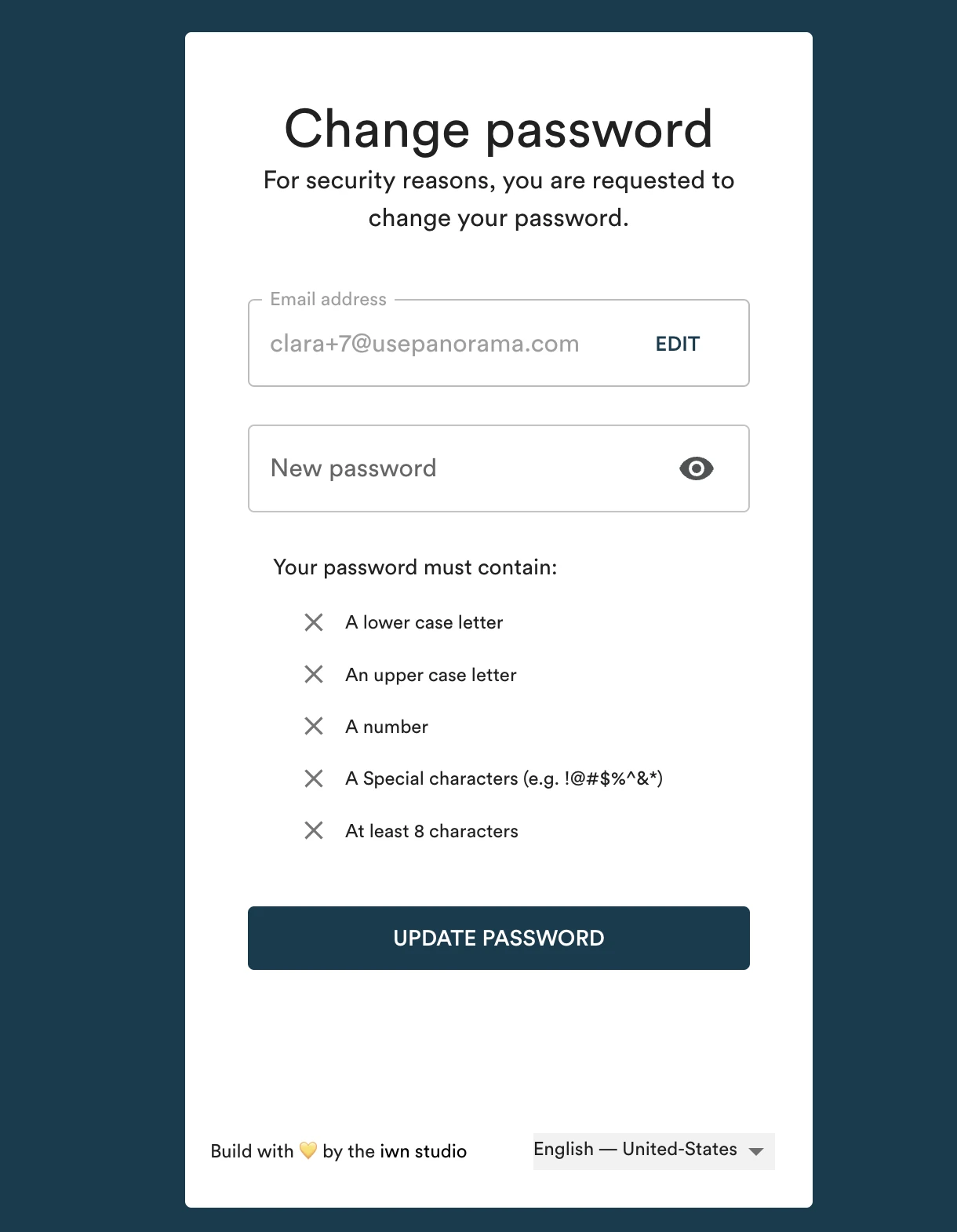
For security reasons, your password must contain at least:
- One lowercase letter
- One uppercase letter
- One number
- One special character (e.g. !@#$%?&*)
- 8 characters
Click "Update password" to confirm the new password.
Select your preferred language
You can select to navigate the software in either French or English.
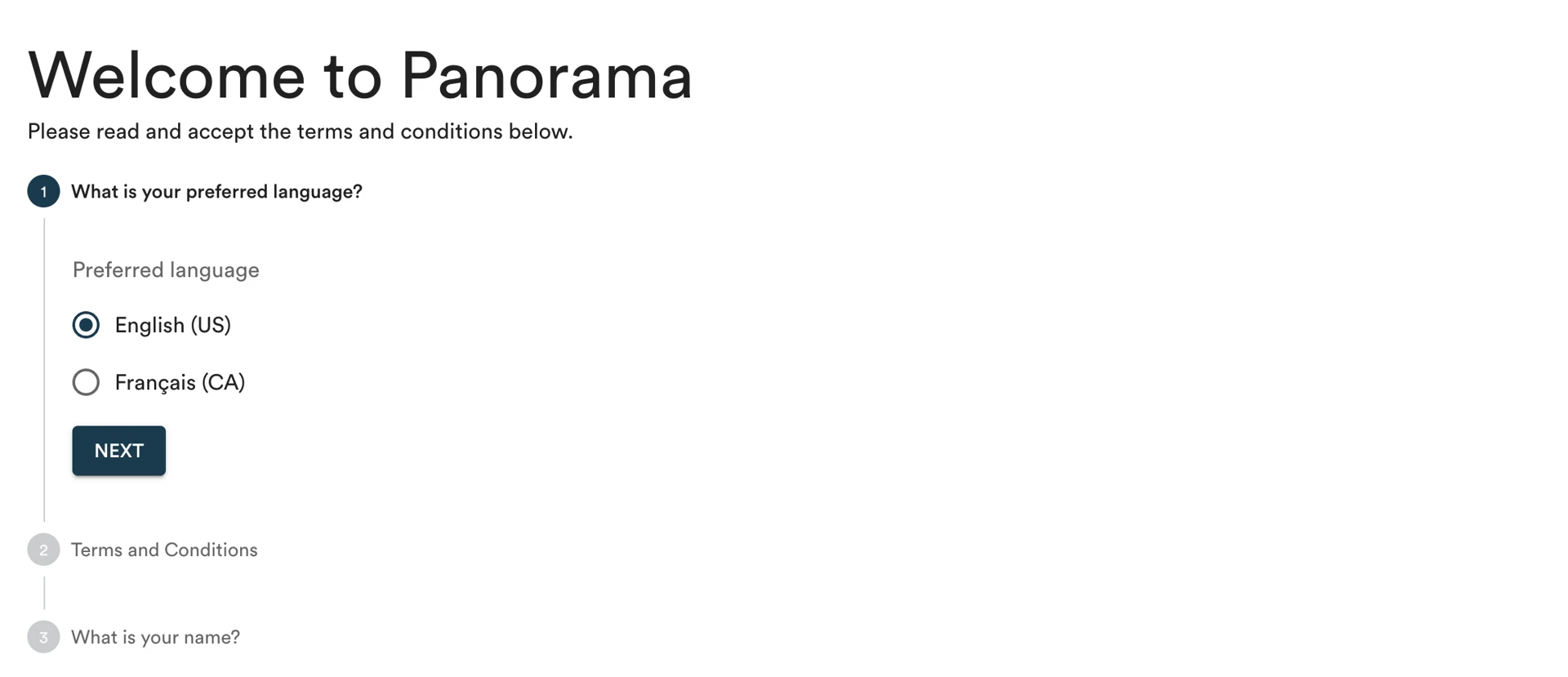
Read and accept the Terms & Conditions
You'll then need to accept Panorama's terms & conditions. You can always find them on our website.
After reading the terms of use, click "I have read and accept the terms and conditions". Then, click "Next".
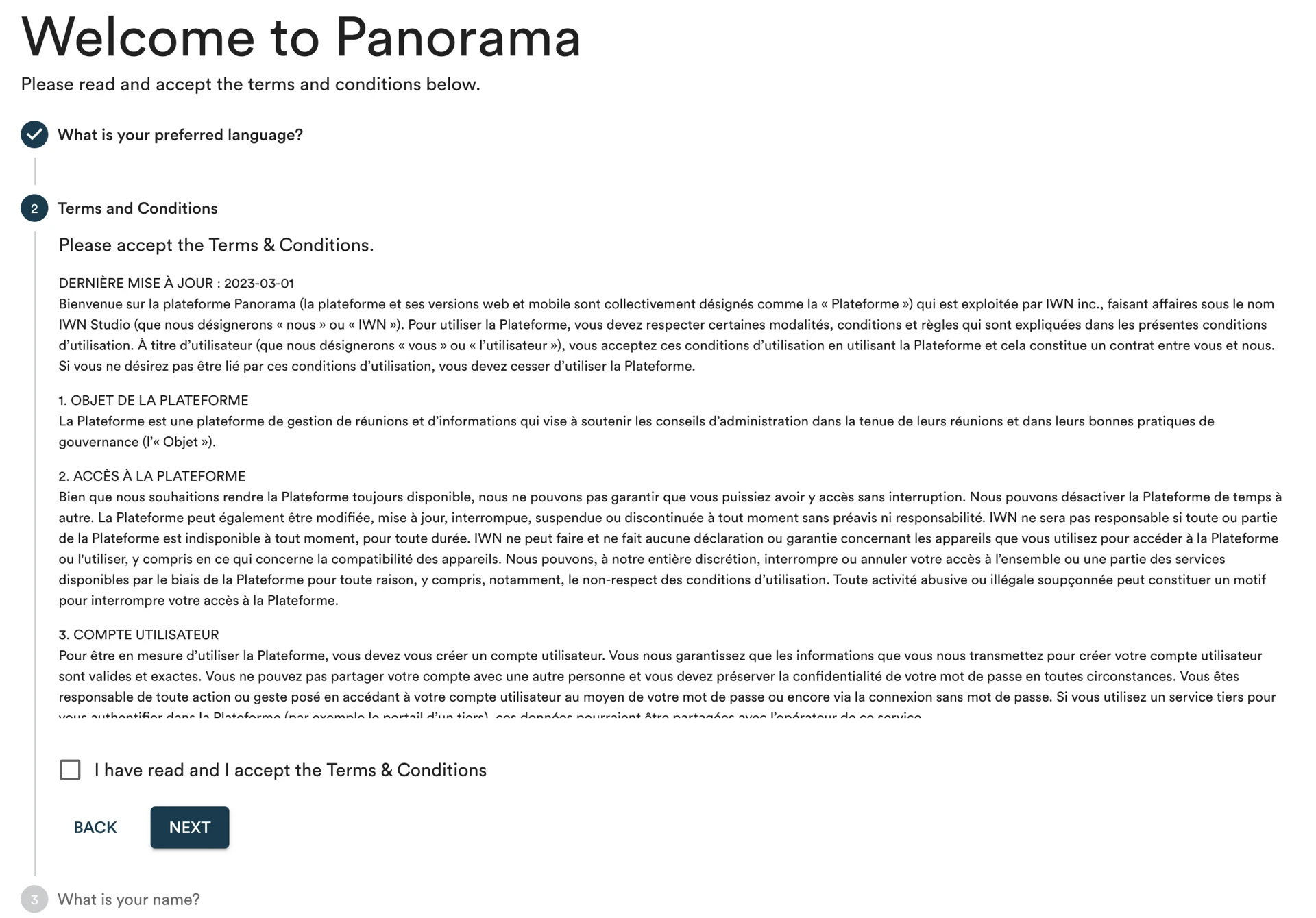
Create your profile
You can then confirm your first and last name to create your Panorama profile.
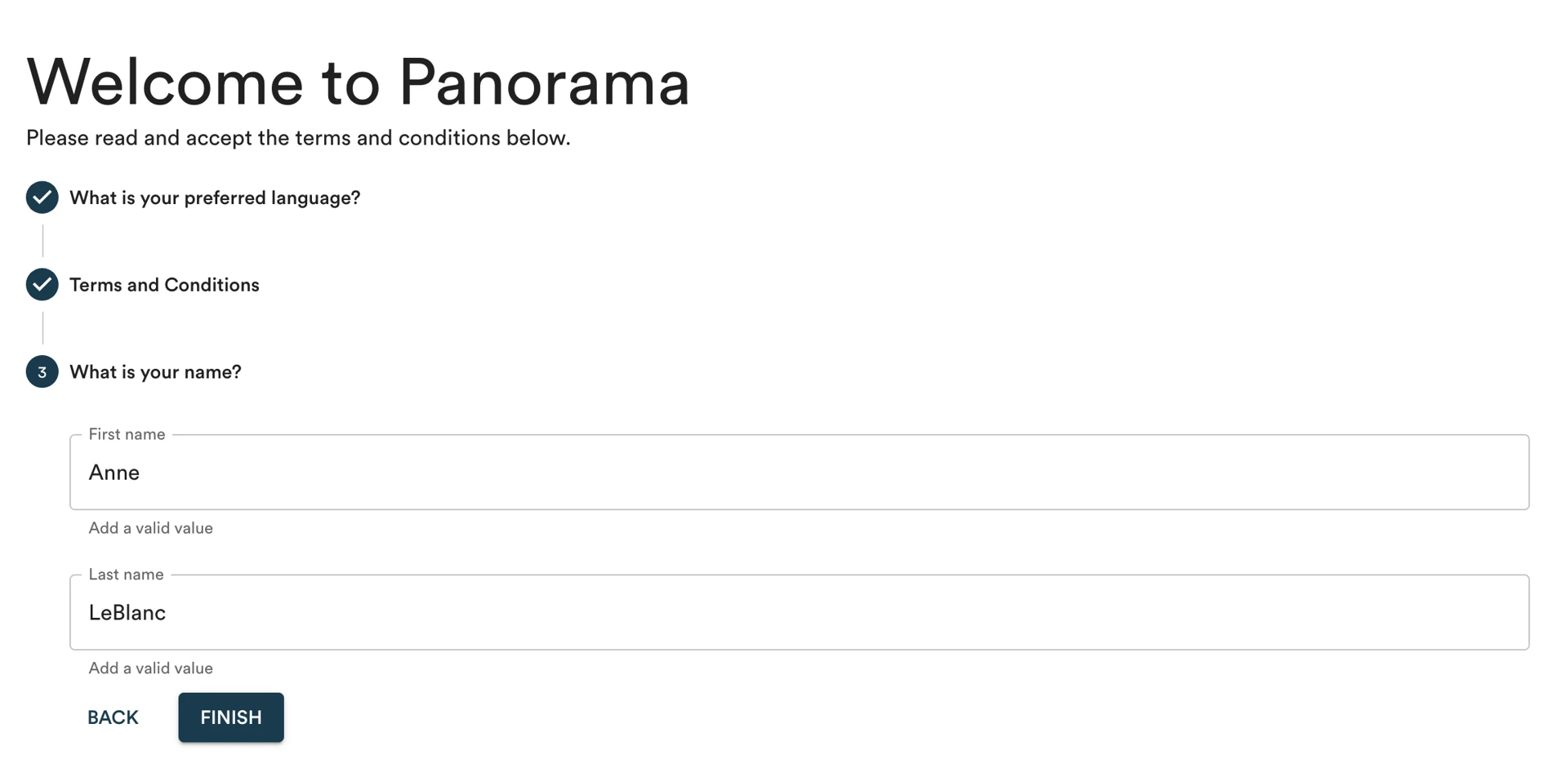
Then, click "Finish".
You will now be redirected to the Panorama software, your account is created!
Add your profile picture and signature
Welcome to Panorama! You're now in the software and you can choose to add your profile picture.
To do this, click on your name at the top right of the page.
Then, click on "Manage my account".
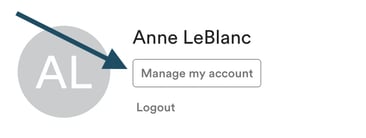
Click on the upload icon to add your profile picture.

Click in the middle of the modal to add an image from your computer or drop an image from your desktop.
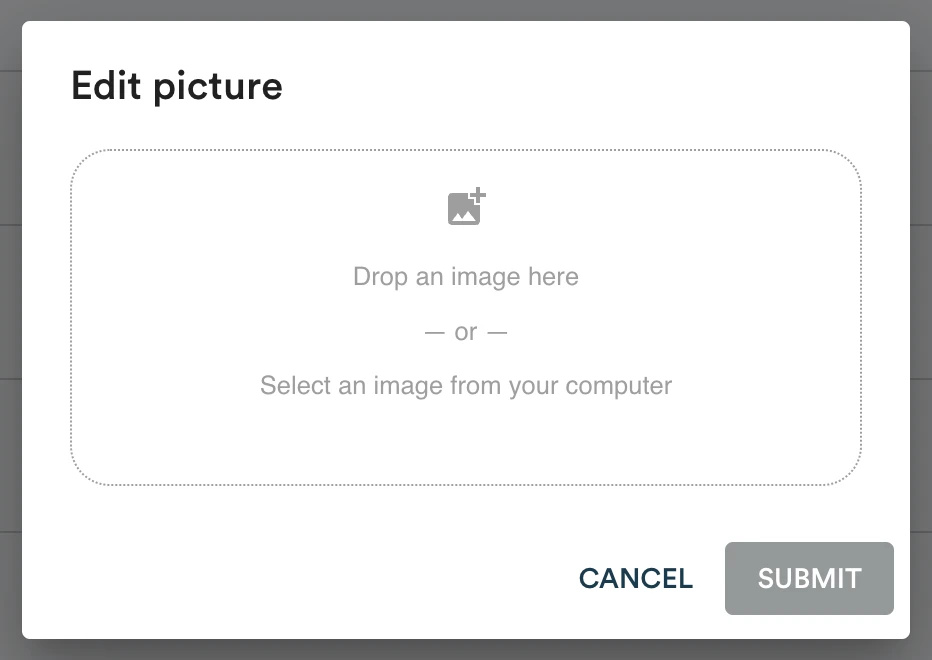
Click "Submit" to save your profile picture.
If you're a signatory on certain documents, you can also optionally add an image file of your signature on this page. If you don't, Panorama will generate the signature automatically.
You can also select your time zone there.
Create your account without a temporary password
If you can't find the email with the temporary password sent by our team or if it has expired, there's another way to create your account.
Go to app.usepanorama.com
Enter your email address and click "Continue".
Instead of entering a password, you can click "Login without password".
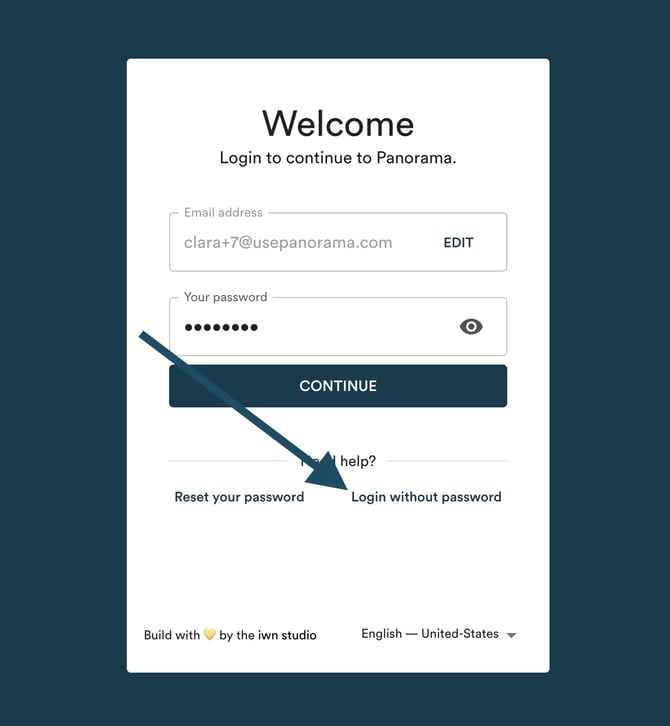
Once that's done, you'll receive a temporary code by email and you'll be able to access the software. You'll receive a new temporary code each time you log in to Panorama.