
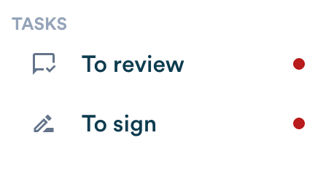
You will find the documents you need to sign in the "To Sign" menu under your tasks. When an action is required from you, a red dot appears next to the menu item.
You will be notified by email when your signature is requested on a document.
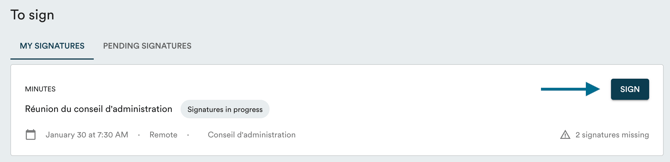
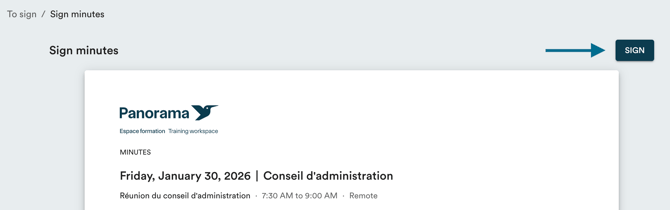
Panorama will automatically create an electronic signature for you. If you prefer to add a photo of your handwritten signature, you can do so in your account settings. To sign a document, click "Sign" on the document in "To Sign", then click "Sign" a second time once you have reviewed the document.
Updating your signature
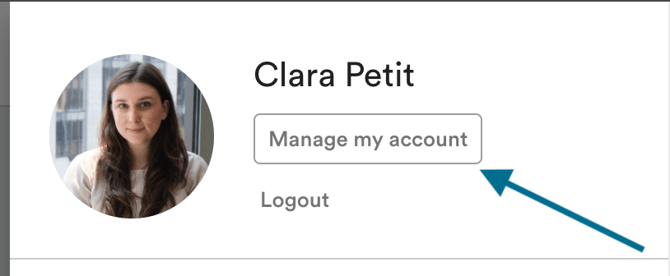
To do this, click on your name in the top right corner of the page.

Then, click on "Manage my account".
Click on the upload icon to add your signature photo.

Click on the center of the modal to add an image from your computer or drop an image by dragging it into the drop box from your desktop.
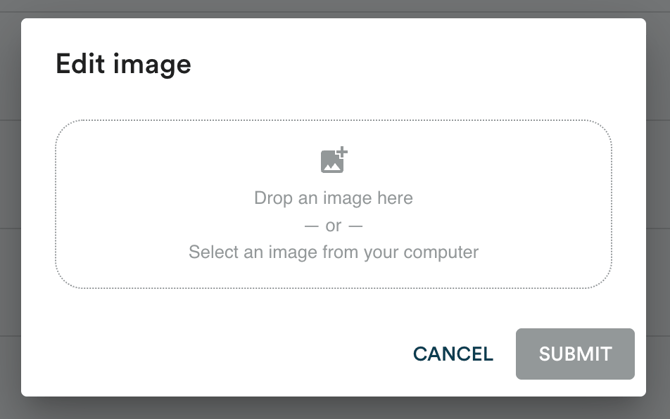
Click "Submit" to save your signature.